
Help overview/Organization and members
Member records
You can manage members in a specific unit / club and also in summary at the organization level.
You can manage members in a specific unit / club and also in summary at the organization level.
Members of the whole organization
In Organization > Members you see members from all subordinate units in one place and can do basic work with them.
For advanced tools, such as Smart table and unit bulk operations, go to a specific unit / club.
Members of a specific unit / club
In a specific unit you can create and edit members, assign them to patrols / groups, and use other tools for working with the membership base.
Creating a member
To create a new member, go to: Unit / club > Members > Overview
Create a member by clicking the plus (+) at the end of the member list in the unit / patrol. Then fill in the first name, last name, and nickname and click create. To create a new member in a patrol, use the same process.
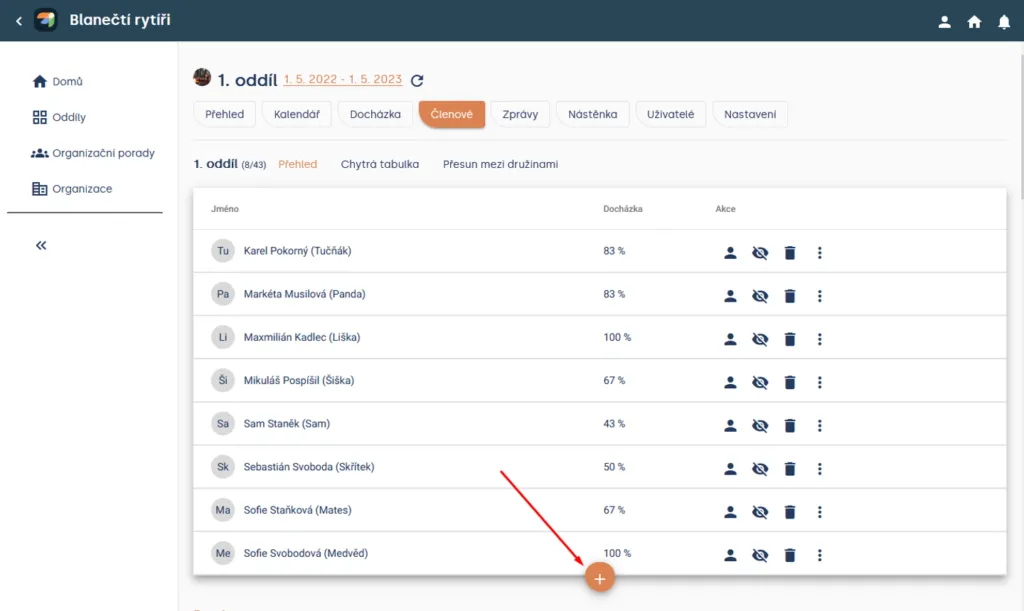
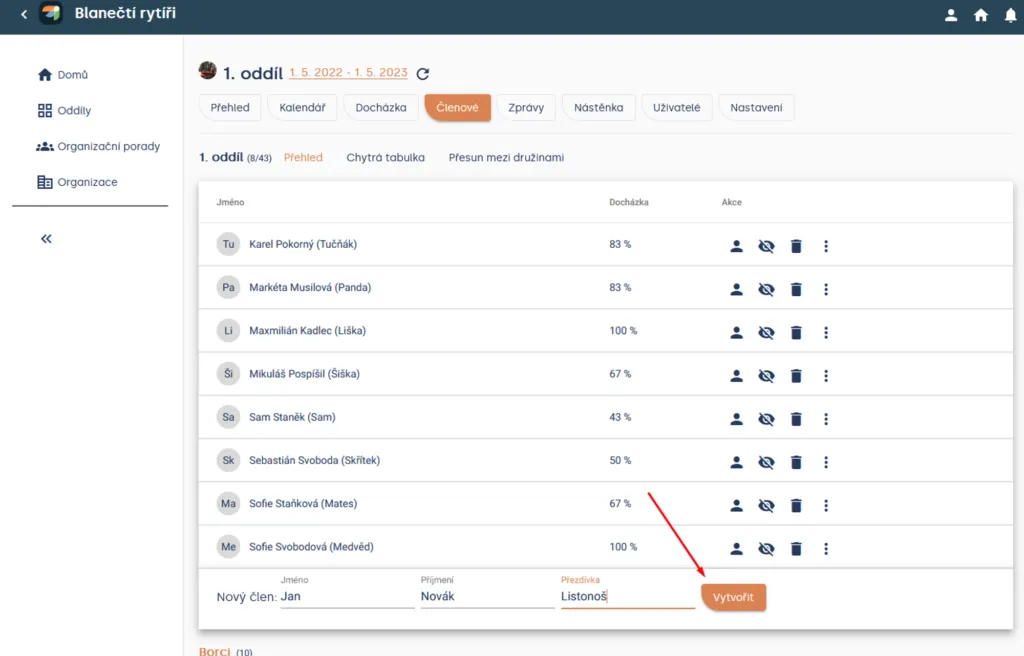
Unit > Members > Overview
Tip: When creating a new member, you only need to fill in one of the three fields (first name, last name, or nickname).
Bulk member creation
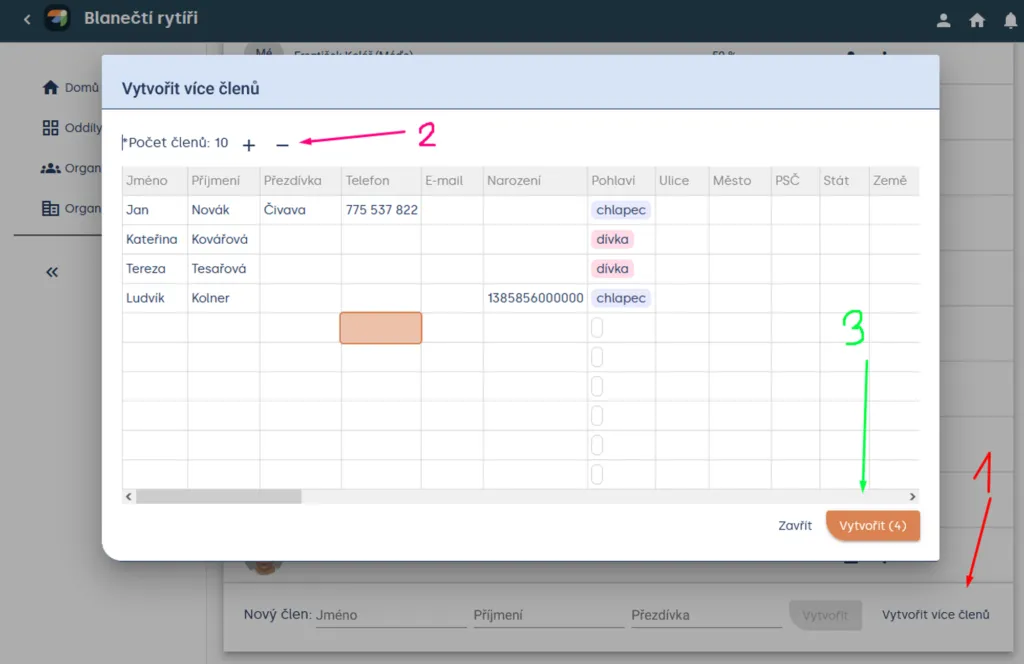
Unit > Members > Overview > Create multiple members
Tip You don’t need to specify the exact number of members you want to create; empty rows will be skipped.
Heads up! For a member to be created, you must have a first name, last name, or nickname filled in; otherwise the member will not be created.
Other ways to add members:
- bulk import in the member overview,
- SkautIS synchronization,
- moving between patrols,
- copying a member to another unit.
The member no longer attends
If a member has left the unit, do not automatically delete them. Deleting can break the link to historical data, such as attendance.
Use the existing function to move them among former / hidden members, so they do not get in the way in the active list, but history stays preserved.
Hiding a member
To hide a member, go to: Unit > Members > Overview
then click the three dots next to the member (⋮), click “Hide”, and confirm hiding.
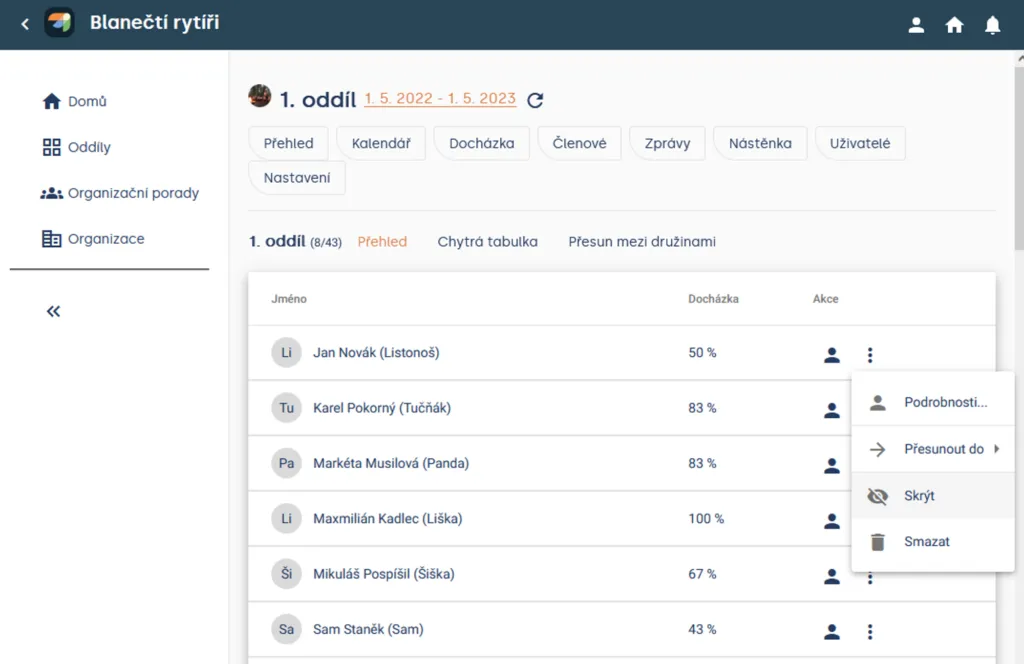
Unit > Members > Overview
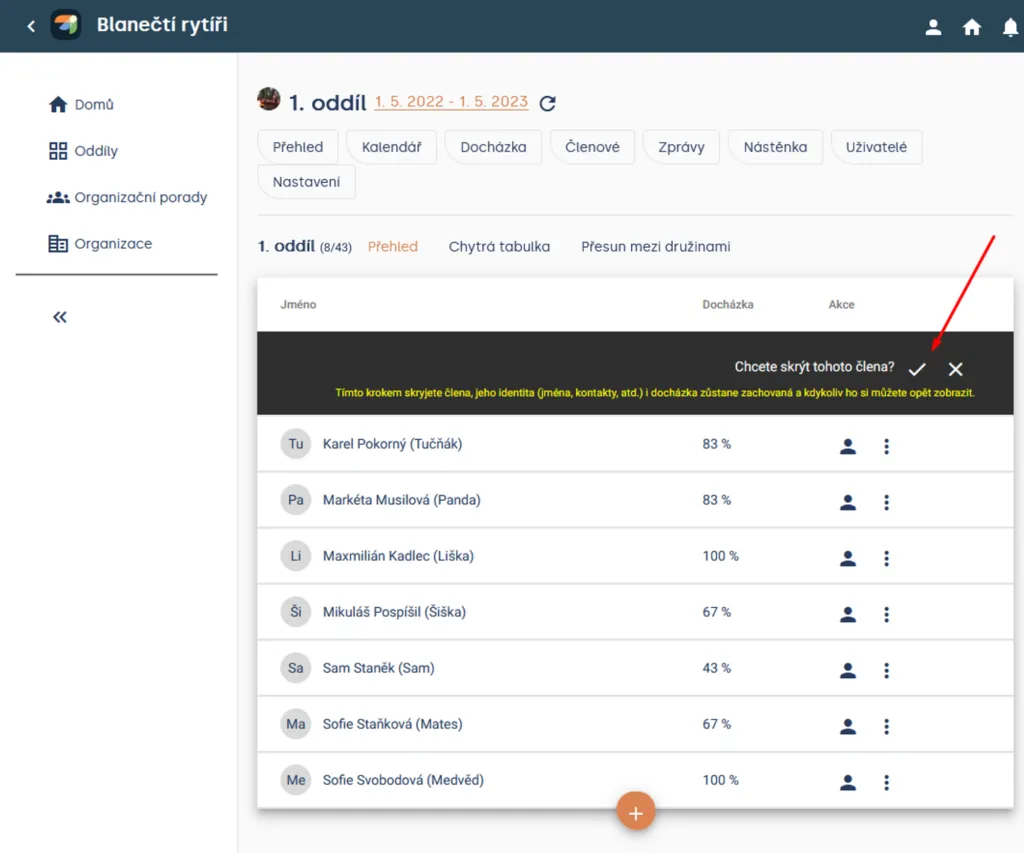
Unit > Members > Overview > Hide confirmation
Deleting a member
Use deletion only when you are sure you really no longer need the record. Click the three dots next to the member (⋮), choose “Delete”, and confirm deletion.
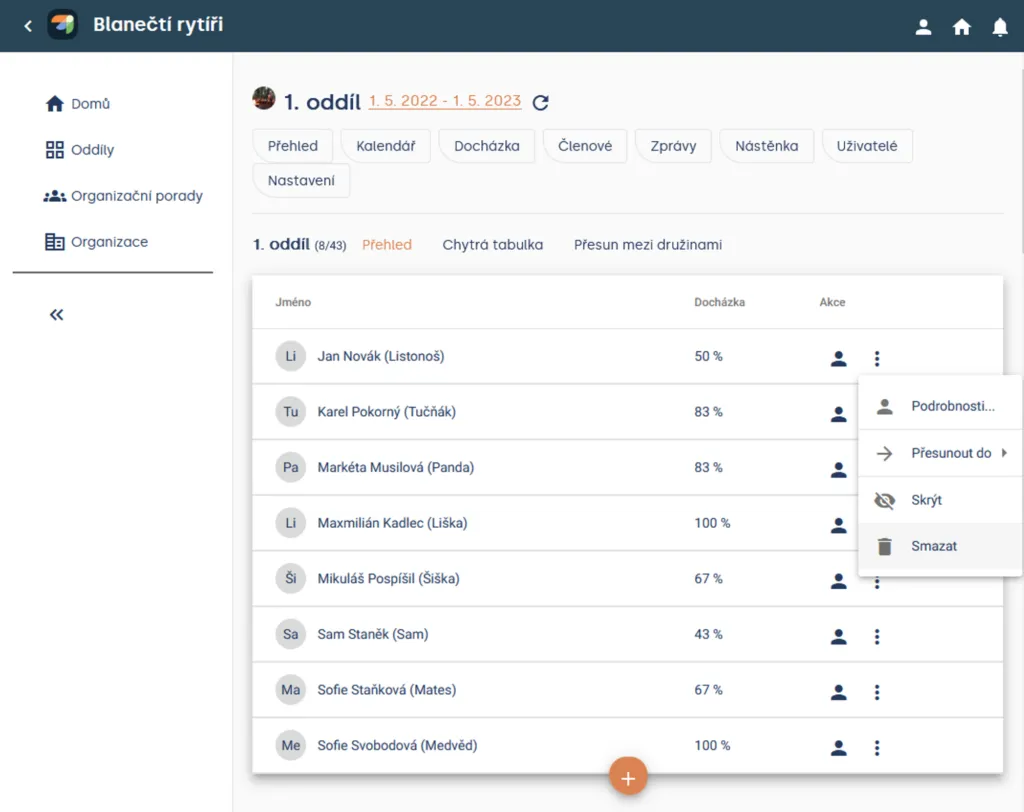
Unit > Members > Overview
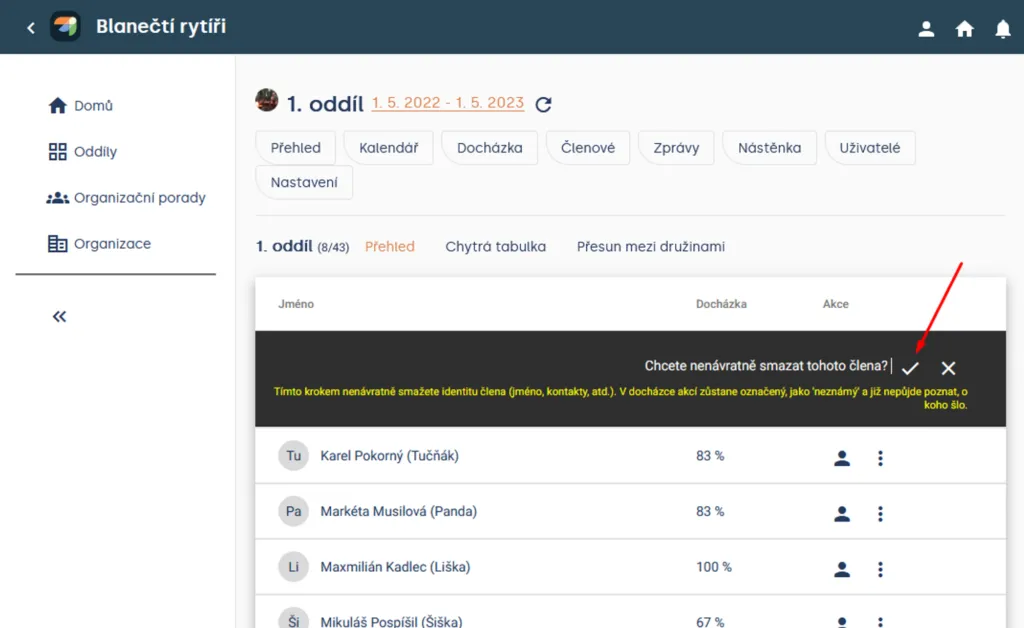
Unit > Members > Overview > Delete confirmation
Heads up! We do not recommend deleting members, because they may remain marked as “unknown” in event attendance and it will no longer be possible to tell who they were.
🔗 Related: Smart table, Moving between patrols, Users
Related articles
Organization and members
Organization
The organization is the top level of a Levitio account. You can handle many things in one place for the whole organization.
Organization and members
Structure
Levitio uses several levels so it can match how your organization is actually organized.
Organization and members
Users and permissions
Users are people who sign in to the administrative part of Levitio. Parents and children are not administrative users.
Organization and members
Unit / club
A unit or club is the main working unit under the organization. You create a new unit from the organization overview.
Organization and members
Unit / club settings
In Settings you edit the basic details of a specific unit / club. This is also where the bank account for Levitio Pay is set.