
Help overview/Organization and members
Attendance records
For events you can record expected attendance in advance and actual attendance — who signed up and who actually arrived.
For events you can record two different things:
- expected attendance in advance — who signed up, excused themselves, or has not responded yet;
- actual attendance — who actually arrived at the event.
Before the event you know who to count on, and after the event you can save the actual attendance status.
Attendance confirmation
Once you create a meeting, series of meetings, or trip, you can send an invitation to all parents/members and request confirmation or excuse of their attendance. This way you will have an overview before the meeting. You can find an overview of confirmed participants for each trip or meeting in the Participants > Invited tab.
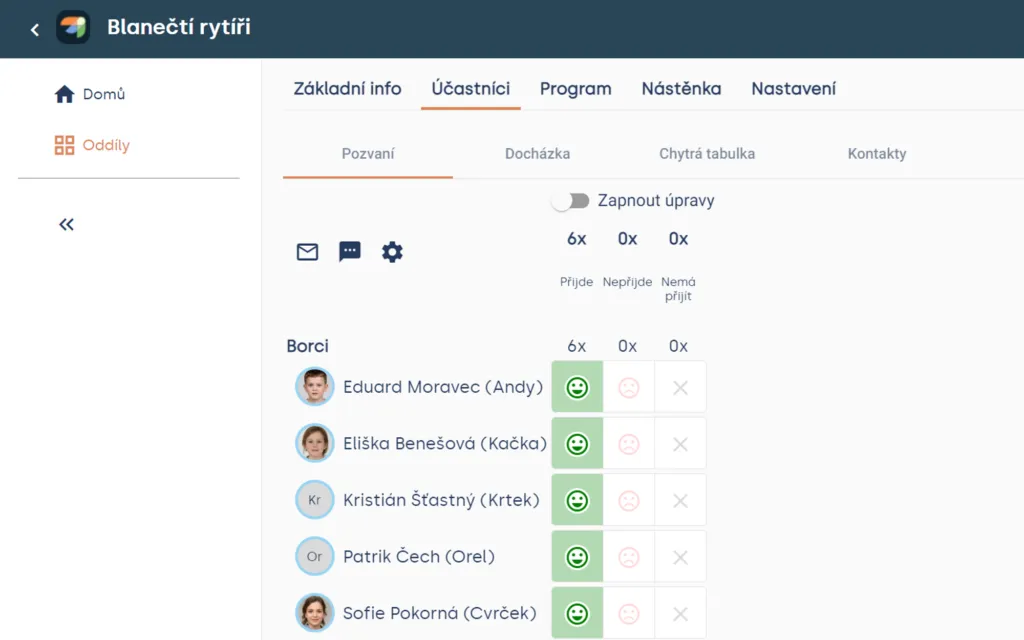
Unit > Meeting > Participants > Invited
Attendance records
You then record attendance in the adjacent “Attendance” section. After opening the tab, select “Insert attendance”.
Heads up! Levitio currently works so that attendance display in the app is fully controlled by the leader, and the app always fills in attendance only for members who “directly” belong to the unit/patrol under which the event was created. If the event was created under a patrol, members of that patrol are pre-filled; if it was created under a unit, only unit members are pre-filled (not members of subordinate patrols). Additional members can be added or removed after clicking “Enable edits”, see below.
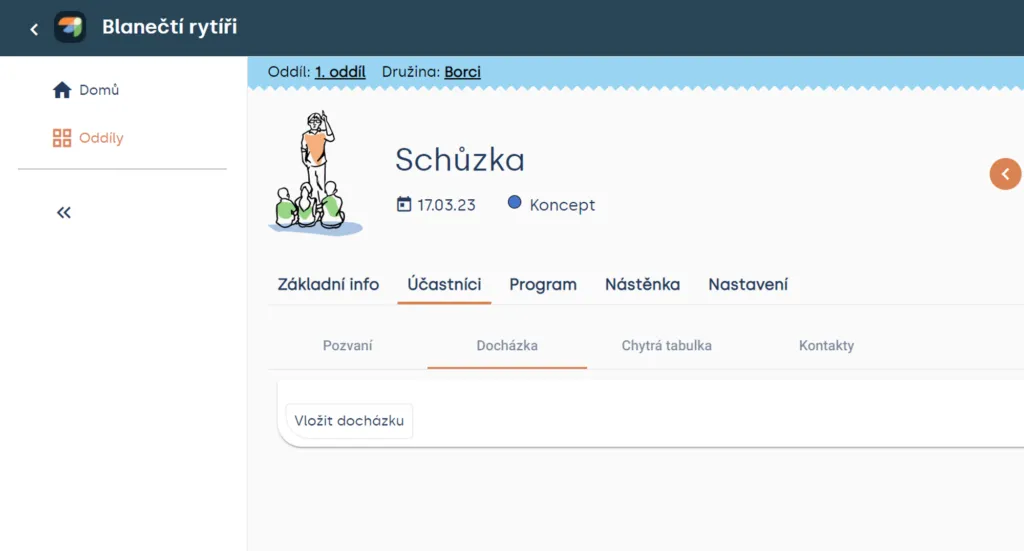
Unit > Meeting > Participants > Attendance
To record attendance, enable “Enable edits”.
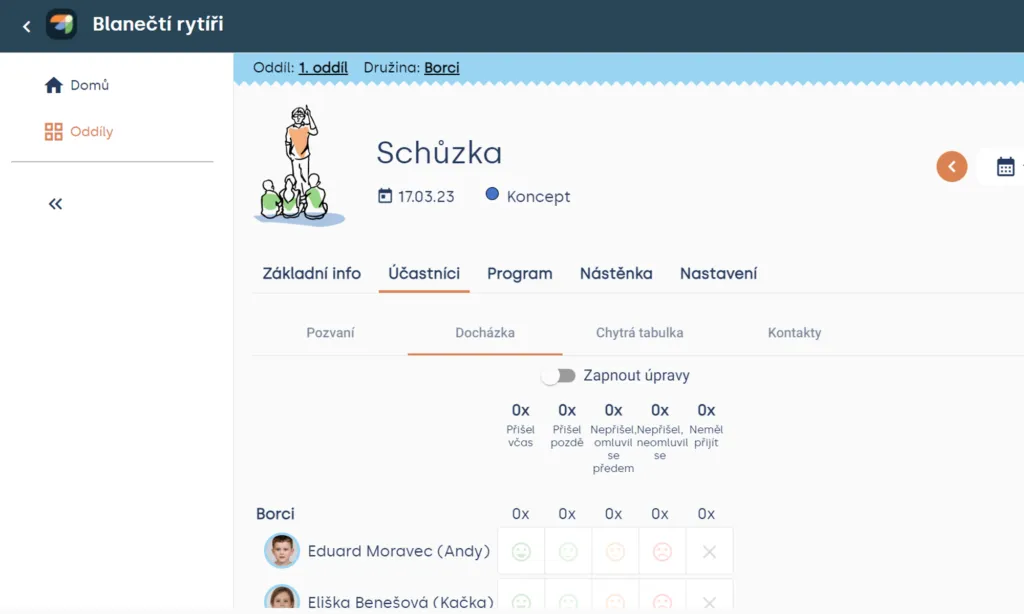
Unit > Meeting > Participants > Attendance
From the available options, you can choose whether a participant arrived on time, late, or did not come at all.
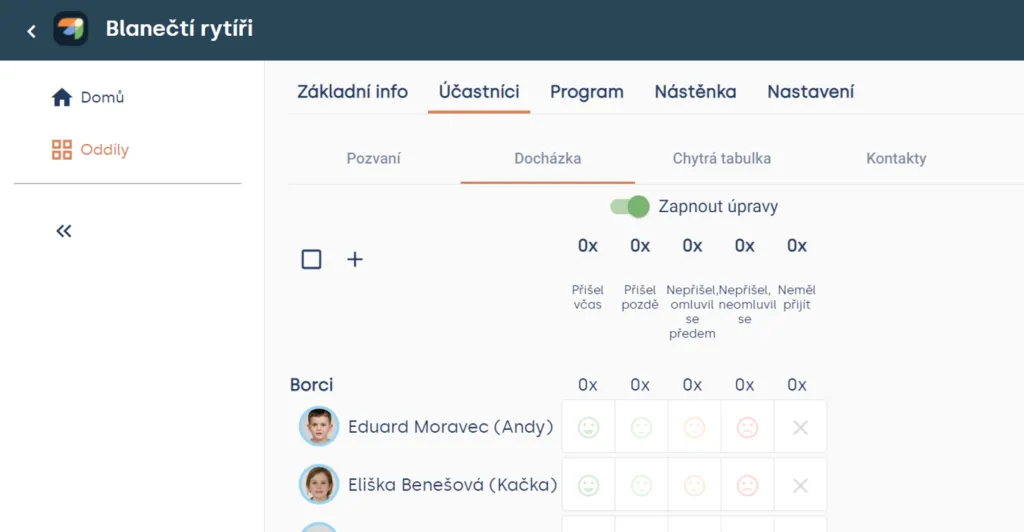
Unit > Meeting > Participants > Attendance
Heads up! Below the “Enable edits” option, you will find summary counts of participants and excused members.
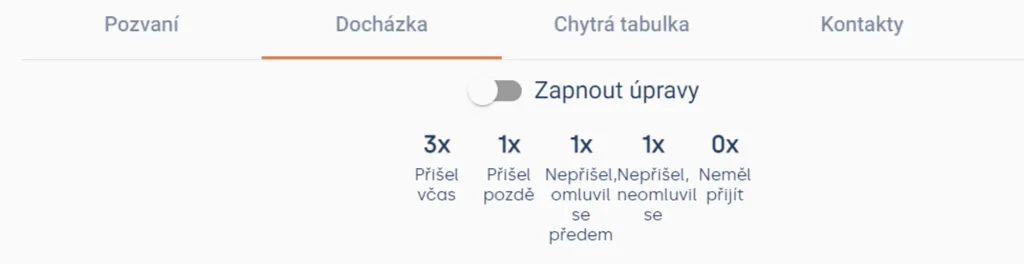
Unit > Meeting > Participants > Attendance
Overall attendance
If you want to track overall unit/patrol attendance at meetings and trips, go to the “Attendance” tab. The overview offers a percentage breakdown of attendance at meetings for the entire unit.
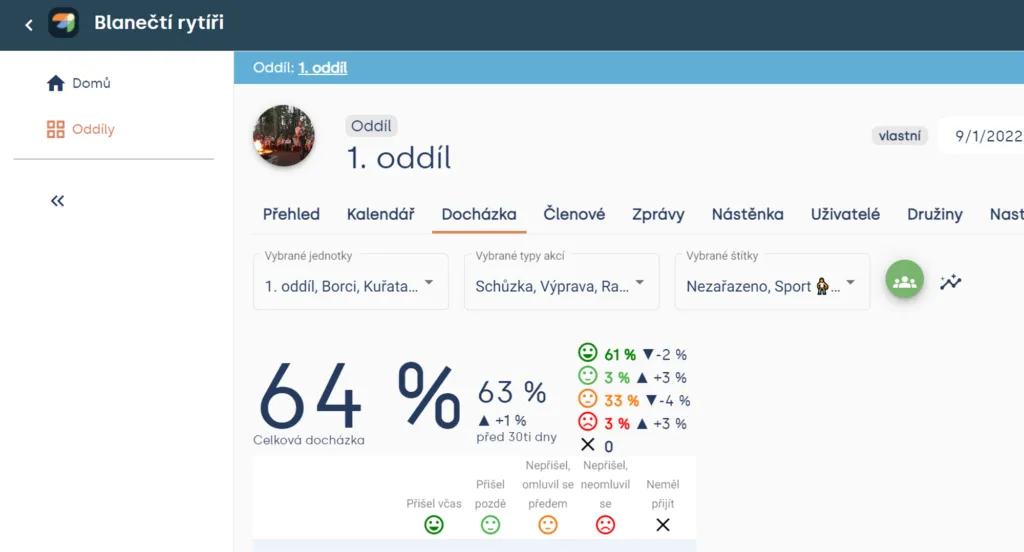
Unit > Attendance
Using the filters at the top, you can select individual patrols or event types and view attendance for your patrol or the entire unit.
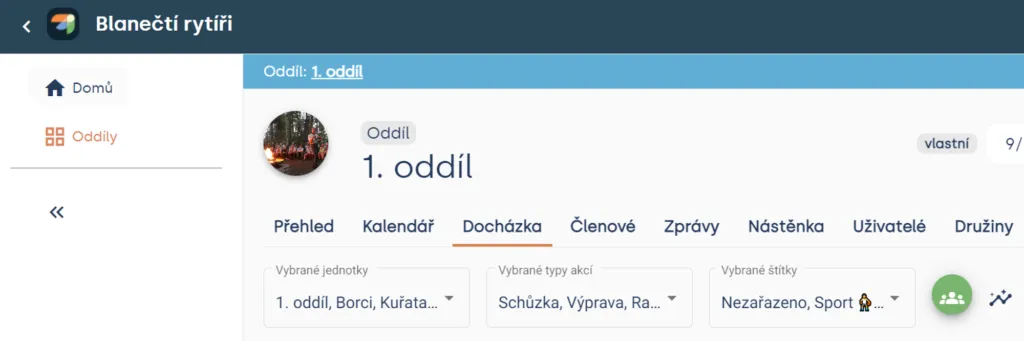
Unit > Attendance
Related articles
Organization and members
Organization
The organization is the top level of a Levitio account. You can handle many things in one place for the whole organization.
Organization and members
Structure
Levitio uses several levels so it can match how your organization is actually organized.
Organization and members
Member records
You can manage members in a specific unit / club and also in summary at the organization level.
Organization and members
Users and permissions
Users are people who sign in to the administrative part of Levitio. Parents and children are not administrative users.
Organization and members
Unit / club
A unit or club is the main working unit under the organization. You create a new unit from the organization overview.