Help overview/Payments
Levitio Pay: payments
Levitio Pay helps units and clubs collect payments from parents and members. The bank account is set in the specific unit.
Levitio Pay helps units and clubs collect payments from parents and members — for example membership fees, payments for trips and camps, or other unit expenses.
A parent pays online and Levitio automatically assigns the payment to the correct member. Leaders then see who has paid and who needs a payment reminder.
At the organization level, combined Payment transactions and Documents are available across subordinate units. Setting up a bank account and creating payments happens in a specific unit / club.

Looking for something specific?
- How payment works from a parent’s perspective
- Donation campaigns / Crowdfunding
- Payments FAQ
- Setting the price for an event
What Levitio Pay makes easier
Levitio Pay enables collecting payments for events and other unit activities. Parents can pay quickly and securely from their phone using a payment card, Google Pay or Apple Pay. At the same time, it makes payment control and management easier for leaders:
- you immediately see clearly who has already paid (payments are automatically synced to Levitio right away)
- you don’t have to chase payments (Levitio sends automatic reminders to those who haven’t paid yet)
- parents immediately receive a payment receipt (you don’t have to write paper receipts at the train station)
- parents can voluntarily increase the payment and donate additional funds to the unit
- you see everything clearly in a table. You can export data or give an accountant direct access.
Before creating your first payment
To accept online payments, the specific unit / club must have a bank account added and approved.
A bank account is not added at the organization level. You set it in the specific unit / club in Settings > Finance.
You also need to correctly fill in the organization’s identification and contact details in settings. When adding an account, you may need to prove that the account belongs to the organization, for example with account confirmation or a bank statement.
🔗 More in Adding a bank account.
If you use multiple bank accounts, you can choose which account the money should later be sent to when creating a payment.
Payment types
You can use Levitio Pay for regular payments, event-related payments, and for raising new funds for the unit through donation campaigns:
- Regular payment (e.g. for registration, clubhouse contribution, unit t-shirts, equipment, etc.)
- Payment is not linked to an event. You fill in its name and select members (manually or by patrols / groups / the entire unit) the payment applies to.
- For a regular payment, you can also enable the option to add a donation. The parent can then voluntarily increase (“round up”) the amount when paying and support unit activities.
- Event payment (participant fee for trips, camps, meetings, etc.)
- Payment is linked to an event and carries its name (cannot be changed). Participants must first sign up before they can pay for the event.
- You can also enable the option to add a donation for an event payment.
- 🔗 Detailed guide to event payments: Event settings
- Donation campaign (crowdfunding / raising funds for activities, purchasing materials, etc.)
- A donation campaign is for collecting standalone donations for the unit. It is not assigned to specific members and is not linked to their required payments.
- You create a campaign page with your own text and can then share the link, for example with parents, former members, on a website, or on social networks.
- The donor chooses the amount themselves and supports the organization.
- 🔗 More: Donation campaigns / Crowdfunding
Creating a new payment
You create a new payment on an event (Event settings) or in the main menu under the Finance tab.
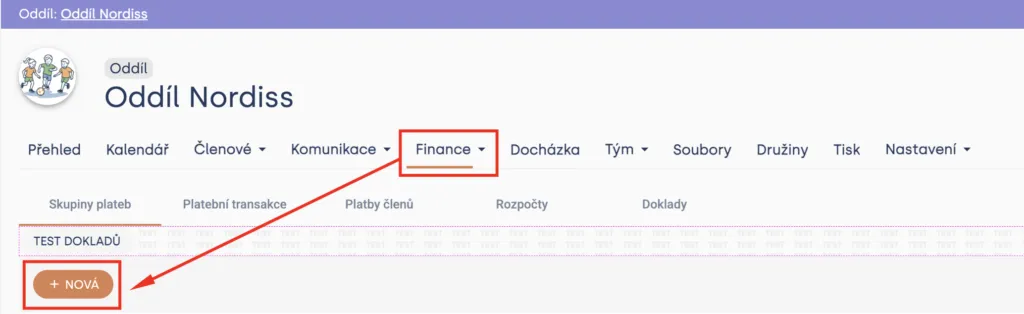
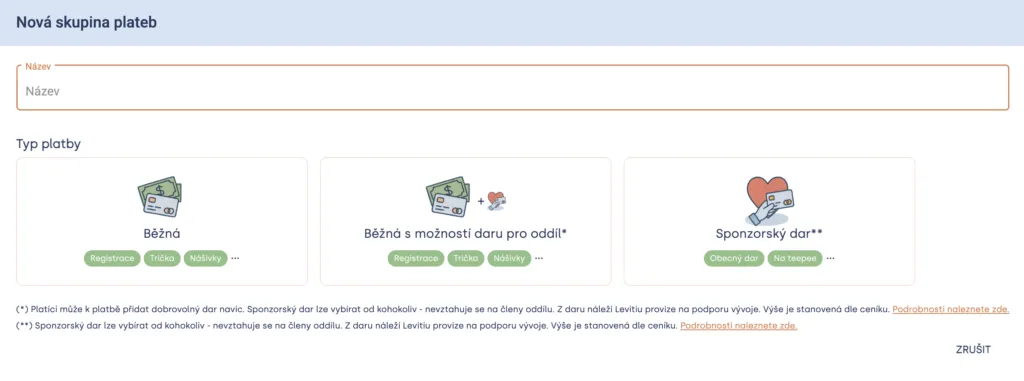
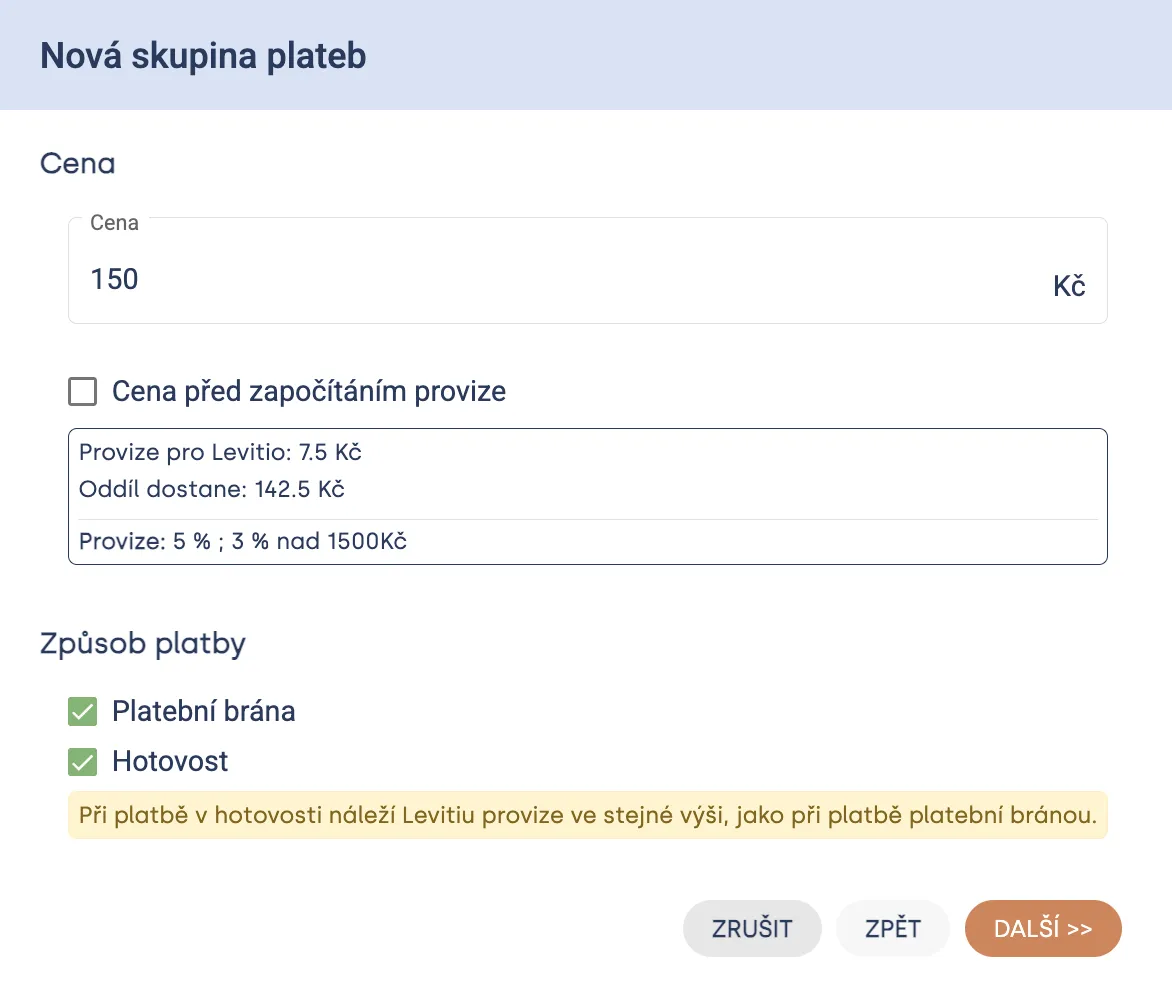
When creating a new payment, you select its type and fill in basic settings, which can be changed later (name, price, payment methods, bank account):
Payment groups (main overview)
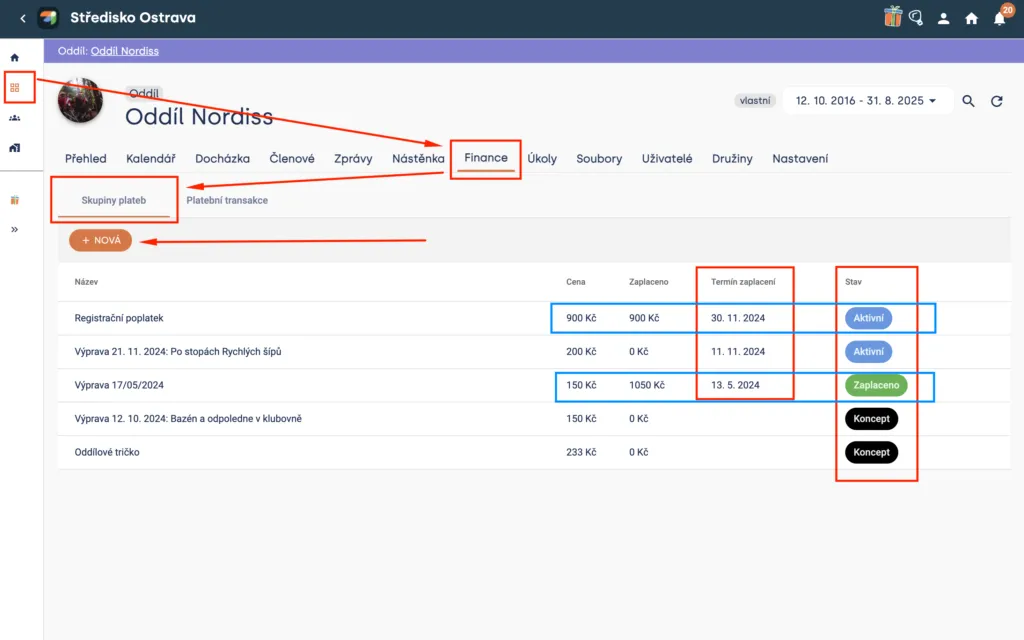
Section: Unit / club > Finance > Payment groups
This is your main place for an overview of all payments. By clicking “New” you can create a new payment group (a payment group means that several members pay for the same thing, e.g. a registration fee).
What you see here:
- Name (created by you, or generated automatically from the event)
- Price (the basic price you entered; it can be adjusted manually for individual members)
- Paid (a summary of how much parents or members have paid in total)
- Payment deadline (chosen by you, if there is a deadline)
- Status (Draft / Active / Paid)
Payment settings
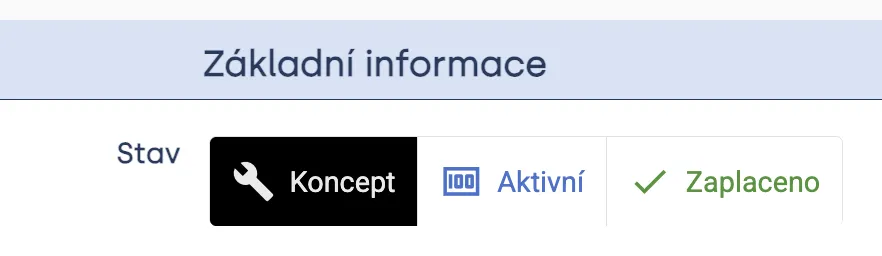
A new payment is first saved as a draft. At this stage parents cannot see it and cannot pay it. Before activating it, check especially: the price, deadline, selected members, and allowed payment methods. After activation, the payment is shown to assigned parents or members and you can send them a payment request.
- Draft / Invisible (black) – parents do not see the payment at all (for a trip they only see the price) and cannot pay it
- Active (blue) – payment is possible normally
- Paid (green) – everyone has paid; payment is not possible (e.g. for newly added members)
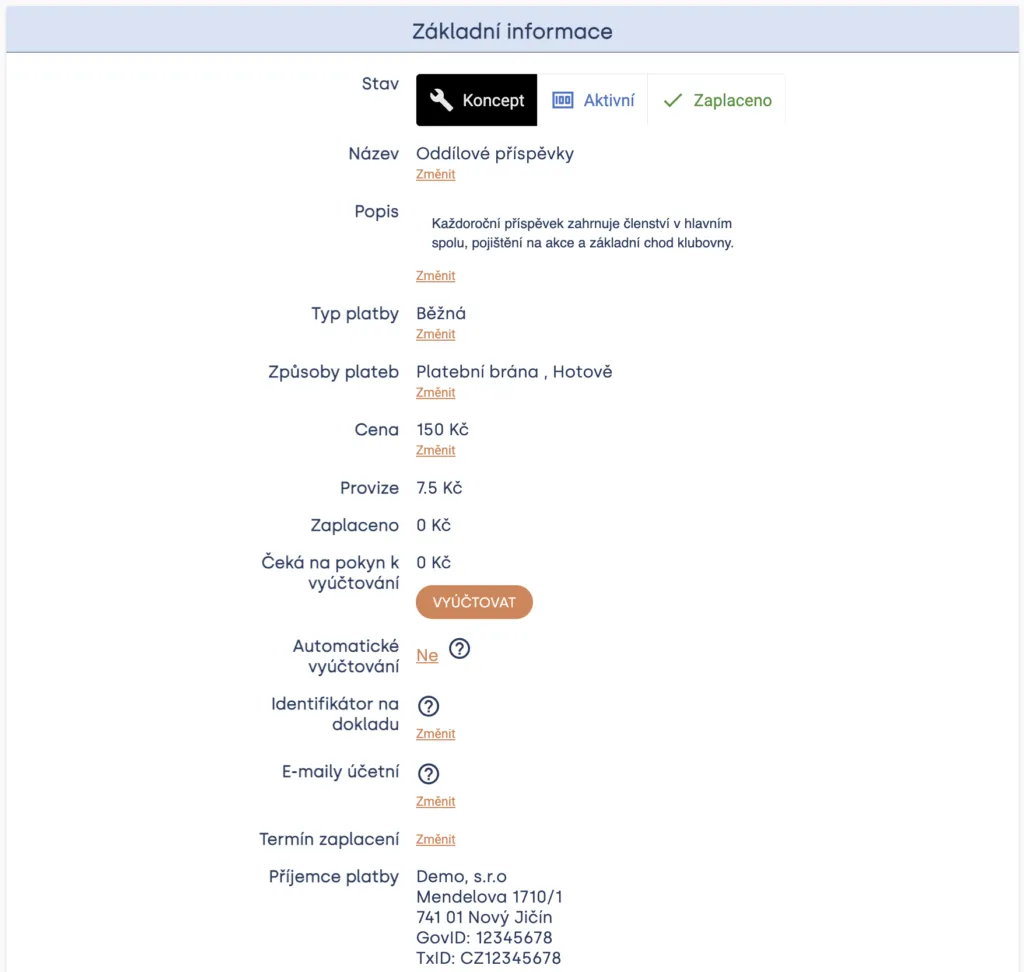
You can also add / change:
- Name (for events it is generated automatically)
- Description (which parents will see, e.g. an explanation of the payment purpose)
- Payment type (Regular / Regular with donation option)
- Payment methods (Payment gateway and/or cash)
- Price (basic price; it can be changed for individual members)
- Automatic settlement (Levitio sends payments to the organization every day)
- Identifier on the document (you can enter a custom identifier for documents)
- Accountant emails (a list of emails to which Levitio sends all documents)
- Payment deadline (by when the payment should be made)
Tip Automatic settlement is optional. If you do not turn it on, you can accumulate received payments and have them sent later as one combined payment. Given how simple accounting then is (all income for an event = one document), we recommend this.
For an event you also see other information that cannot be changed:
- Levitio Pay fee (calculated automatically from the price)
- Paid (information synced from the payment gateway)
- Payment recipient (taken from the settings of the organization / unit for which the payment is collected)
Paying members
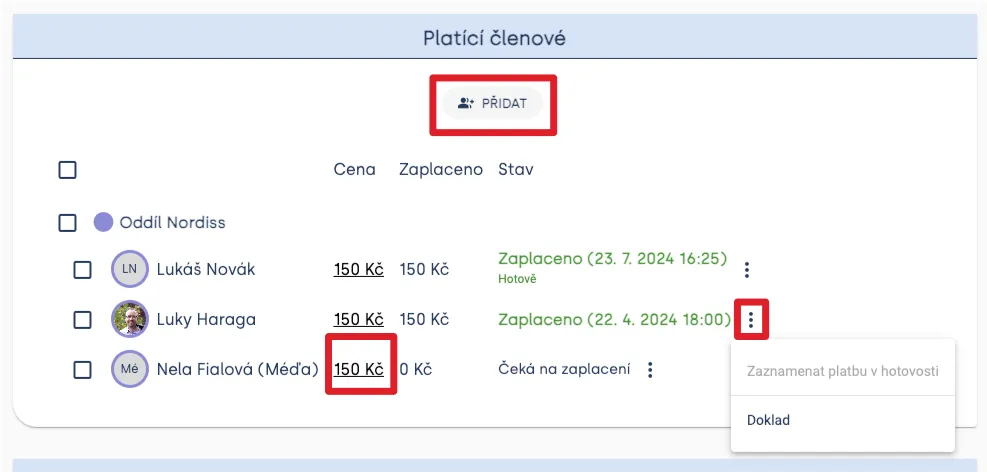
For a payment you must specify which members it applies to. By clicking “Add” in the Paying members section you can add members manually, or by entire patrols, or the entire unit.
For members you see price (can be changed), Paid (how much they paid), and Status (color-coded).
Practical tip For events, payment is automatically enabled for everyone who is invited and signed up. Therefore, in the settings below, you do not need to add members manually.
Manual price adjustment (discounts)
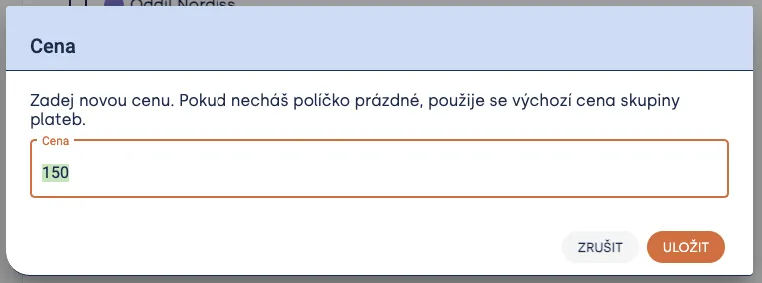
You can manually adjust the price for individual members (e.g. a sibling discount). In that case click the price next to the member and overwrite the value (for events, first add these members to the list using “Add”).
Status (synced from the payment gateway)
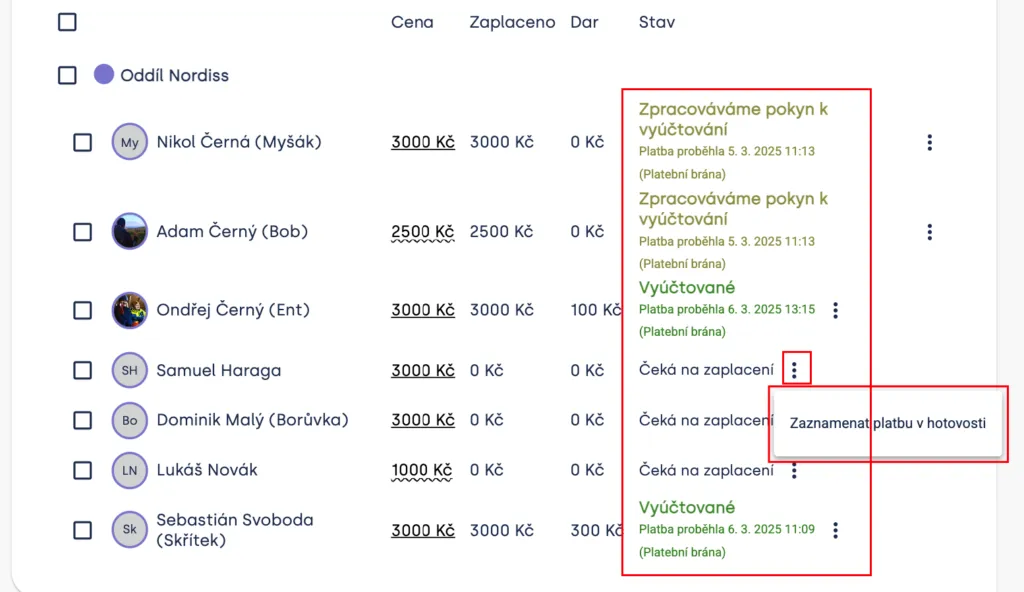
For displayed members (who have paid or whom you added manually) you see payment status:
- Awaiting payment – the parent/member has not paid yet
- Paid (+ exact time; automatically synced from the payment gateway)
- Money is ready for settlement (the money is in Levitio’s account)
- Processing the settlement request (we are sending money to the unit account)
- Money has been sent to the unit
- Paid in cash (you can mark this manually by clicking the three dots)

By clicking the three dots you can either record a cash payment, or, if a payment has already taken place, display the payment receipt (payers see it automatically immediately after payment and receive a download link by email).
Heads up! For a cash payment, Levitio is due a fee of the same amount as for a payment-gateway payment. Levitio is free for organizations, and funds collected this way are necessary for operating and further developing the app.
Sending a payment request
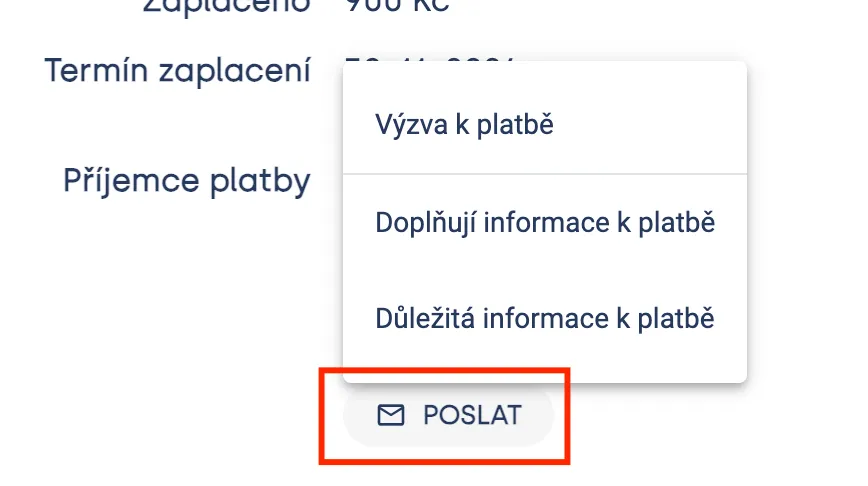
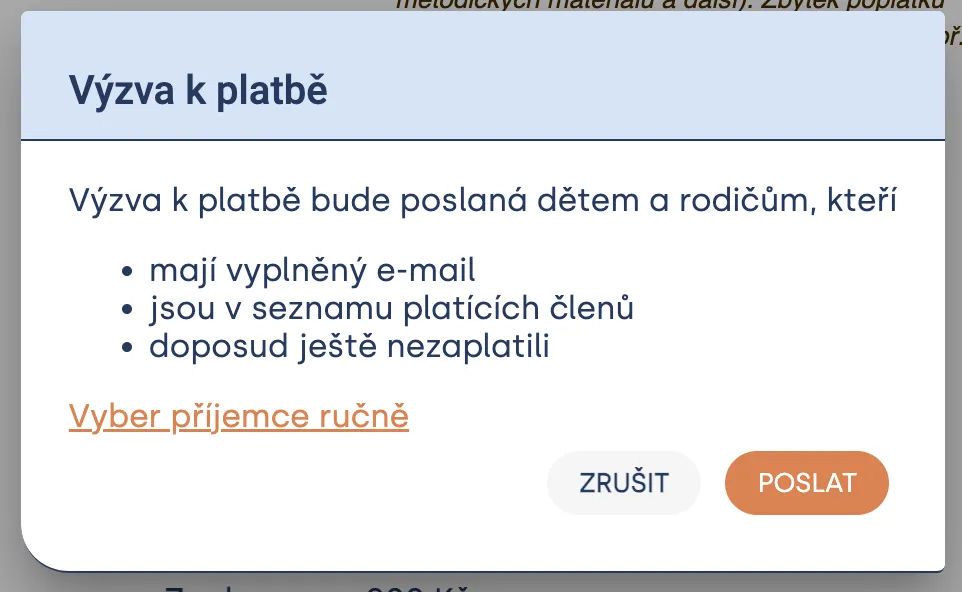
You can send a payment request to parents (or members) by clicking “Send”. This way you can send payment requests or additional information. By manually selecting recipients you can specify whether the request should be sent only to parents, only to members, or for example only to a specific patrol.
🔗 Sending a message works the same as Sending messages to members and parents 🔗 What a payment request looks like: Paying unit contributions from a parent’s perspective
Automatic payment reminders
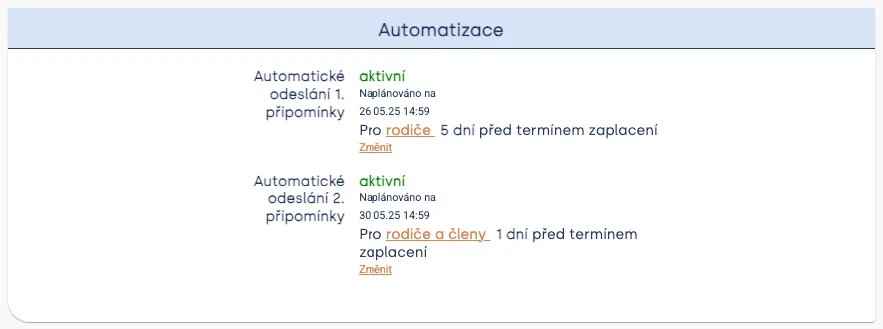
Just as you can set automatic reminders for parents / members on events, you can do the same for payments. If a member’s payment is still awaiting payment and there are x days until the deadline, Levitio sends the member / parent an email reminder (if the unit has this set up):
Payment transactions (detailed overview)
Section: Unit / club > Finance > Payment transactions
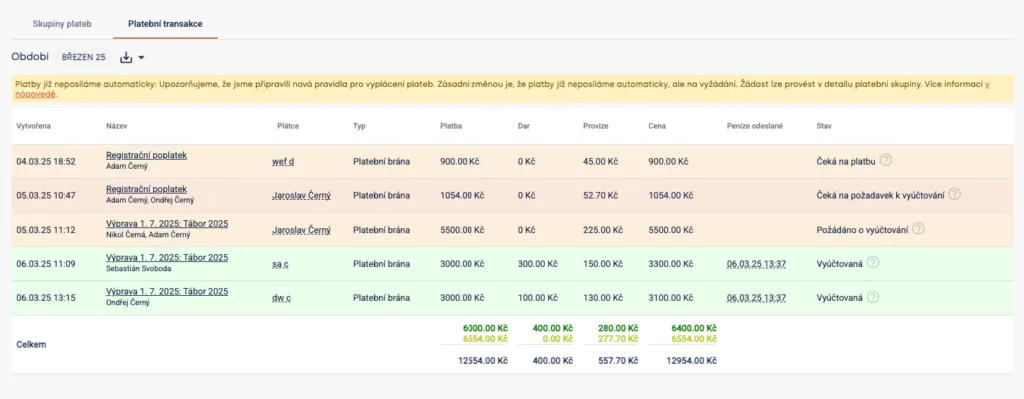
Payment transactions show each individual payment in detail. You can see creation date, name, payer, transaction type, price, Levitio Pay fee, and status.
At the top you can also select a period and export payments from the selected period to Excel.
Combined organization view
If you manage several subordinate units, you can also follow transactions via Organization > Payment transactions.
This view is for a combined overview; it does not create an organization-level bank account.
Member payments
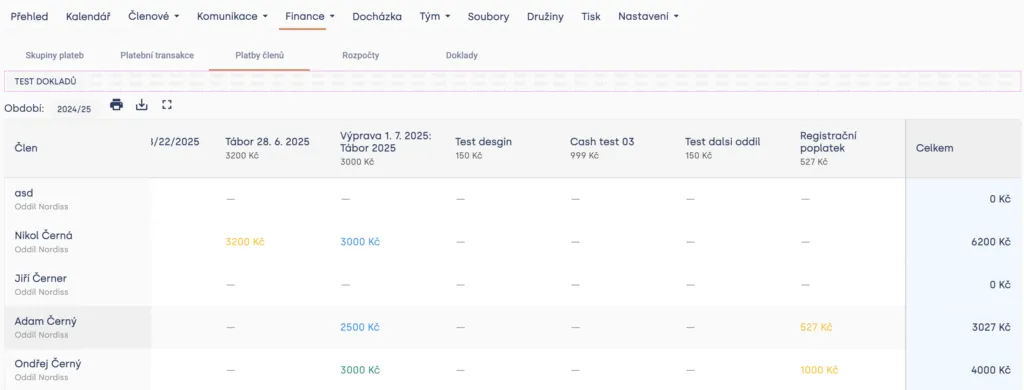
In the Member payments overview you find members, payment groups, and paid amounts in one place.
This lets you quickly check, for example:
- which payments apply to a specific member,
- how much they were supposed to pay,
- how much they have already paid,
- where a payment is still missing.
You can print the overview or export it to Excel.
Budgets
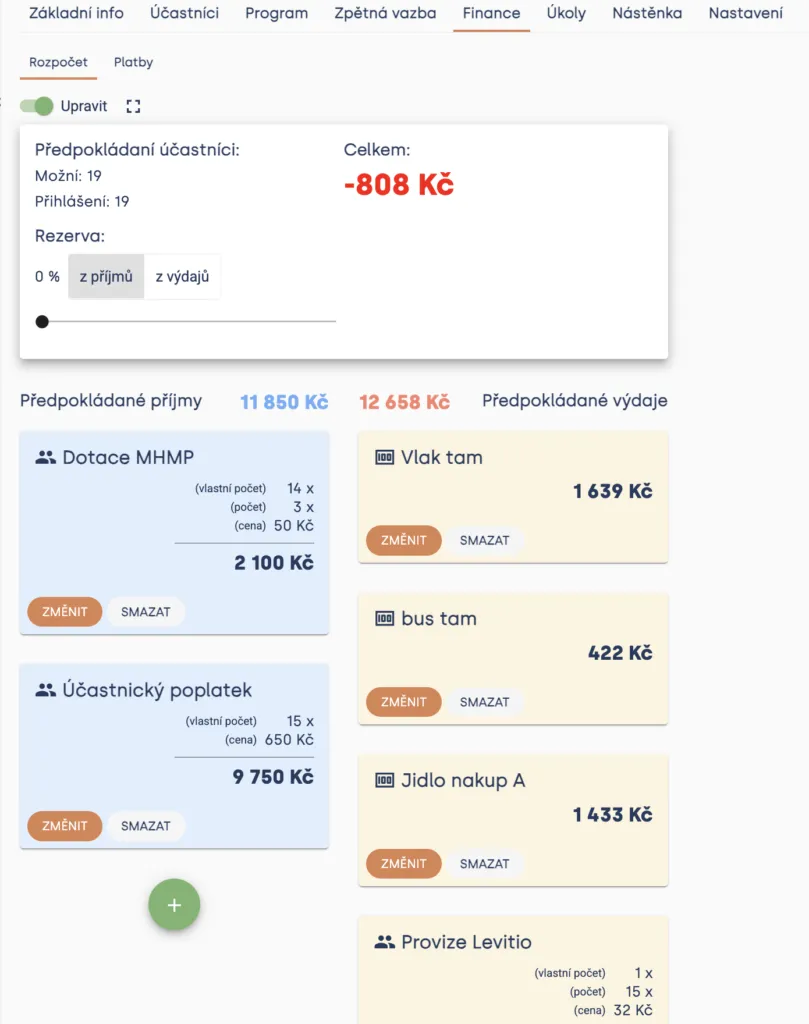
In Finance you can also create standalone unit budgets (similarly to specific events). You can have several budgets and work with them separately, for example for:
- the clubhouse,
- purchasing equipment,
- or an entire activity period.
Budgets are not linked to payment groups and do not reflect payments received from the payment gateway.
Practical tip Organizations that use Levitio Pay can also create standalone unit budgets in Finance → Budgets. For organizations that do not collect payments, budgets remain locked.
Documents
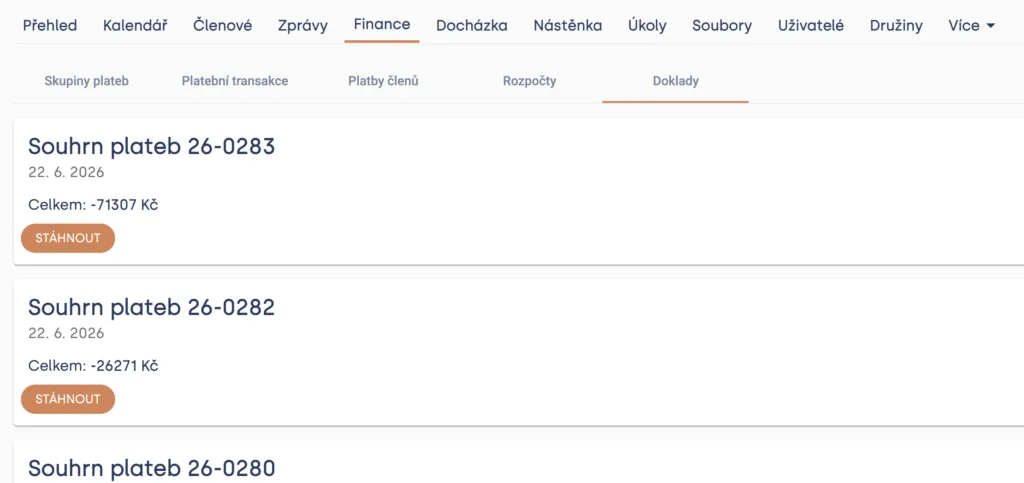
Documents can be followed in a specific unit and, depending on permissions, also in summary via Organization > Documents.
After sending money to the unit, Levitio automatically creates and stores the relevant accounting document. Levitio can also automatically send documents to selected email addresses, e.g. to the accountant.
Levitio Pay fee
Levitio is free for organizations. If you decide to collect payments through Levitio, we charge a Levitio Pay fee to cover payment-gateway costs, operations, and application development.
By using Levitio Pay, your unit and its leaders not only make their work easier, but also fairly contribute to the sustainable operation of the project. Thank you!
You can always find the current rate in the Levitio price list as well.
| Payment type / amount | Levitio Pay fee |
|---|---|
| On the portion up to CZK 1,500 | 5% |
| On the portion above CZK 1,500 | 3% |
| Donation | the same 3–5% rates |
There is no special 10% rate for donations. For an amount of CZK 2,000 the fee is CZK 90: CZK 75 on the first CZK 1,500 and CZK 15 on the remaining CZK 500.
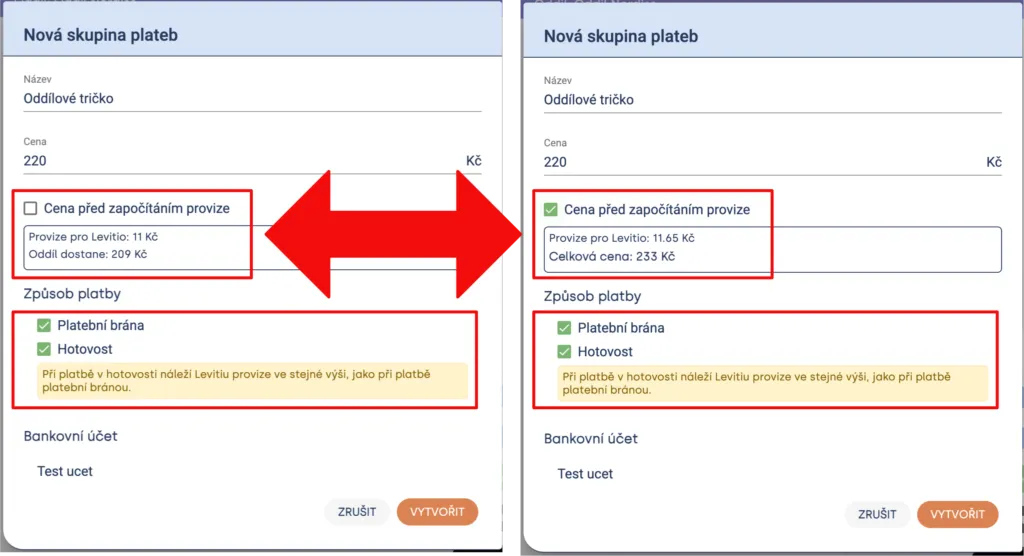
Tip By checking “Price before the fee is included”, you can set it so you receive the configured price in your account. Levitio will then increase the payment for parents by the calculated Levitio Pay fee.
If you don’t check the button, the price you set will be final for parents and the fee will be deducted from this price (so you receive the set price minus the fee).
Who pays the fee when I decide to collect payments using Levitio?
You can decide. Either parents pay the fee (as a fraction of the payment), or the unit pays (e.g. from an operating subsidy or otherwise).
Related articles
Payments
Payments FAQ
Levitio always shows you the fee transparently in advance. Donations use the same 5% / 3% rate as other Levitio Pay payments.
Payments
Donation campaigns / Crowdfunding
Levitio lets you collect donations and thereby increase the unit's funds. Donations use the same 3–5% Levitio Pay fee.
Payments
Adding a bank account
To accept payments through Levitio Pay in a specific unit / club, you must first add and have a bank account approved.
Getting started
Getting started
Levitio is used by organizations, leaders, members, and parents. This guide walks you through creating an organization and the first steps.
For parents
Levitio for parents
Parent and member portal: events, payments, noticeboard, and children's details in one place. You enter the portal with a personal link, without registration or a password.