Help overview/Communication
Sending messages to members and parents
You can use Messages in a specific unit / club and also at the whole-organization level.
Messages
You can use Messages both in a specific unit / club and at the whole-organization level.
- Organization > Messages — communication from the organization level.
- Unit / club > Messages — communication with a specific unit.
In the Messages section you see the history of sent communication and can create a new message. In the bottom right of the screen, a green “New message” button will be visible.
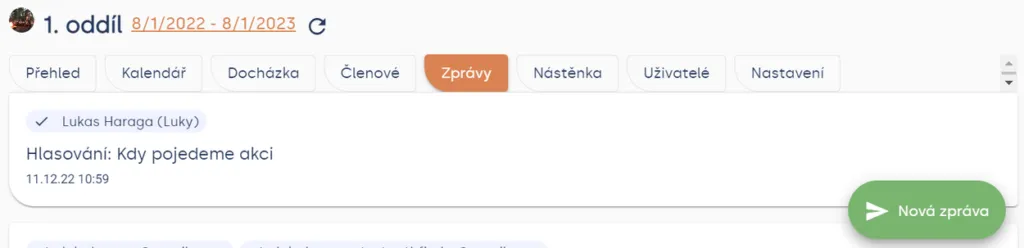
Unit / club > Messages > New message
Clicking the “New message” button shows options to send an email or SMS message.
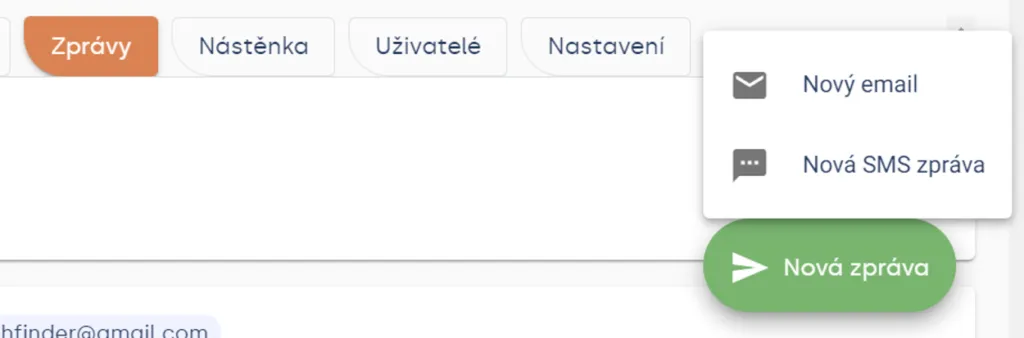
Unit / club > Messages > New message
New email
After clicking “New email”, a window will appear where you select everyone you want to send the email to. After selecting all recipients, click the Next>> button on the left.
Practical tip By clicking “everyone”, “parents”, or “members”, you select all contacts corresponding to that word. You can do this for the entire unit, or for contacts belonging to a specific patrol.
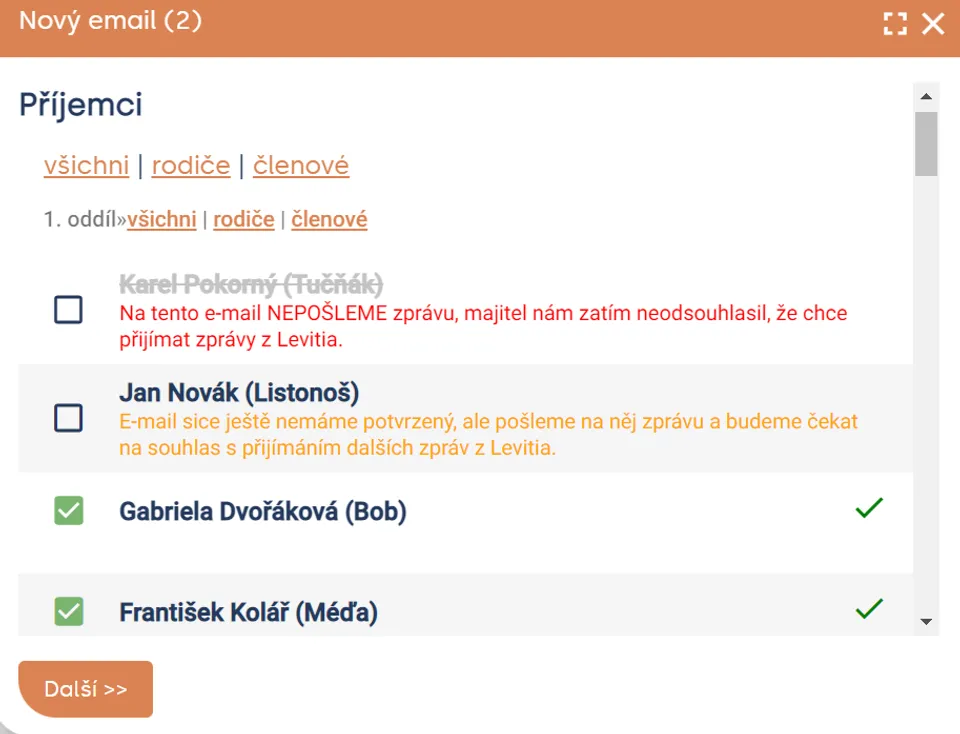
Unit > Messages > New message > New email
After filling in the email subject and text, the “Send” button becomes active. Simply click it and the message will be sent. You will then see the sent message in the Unit > Messages section.
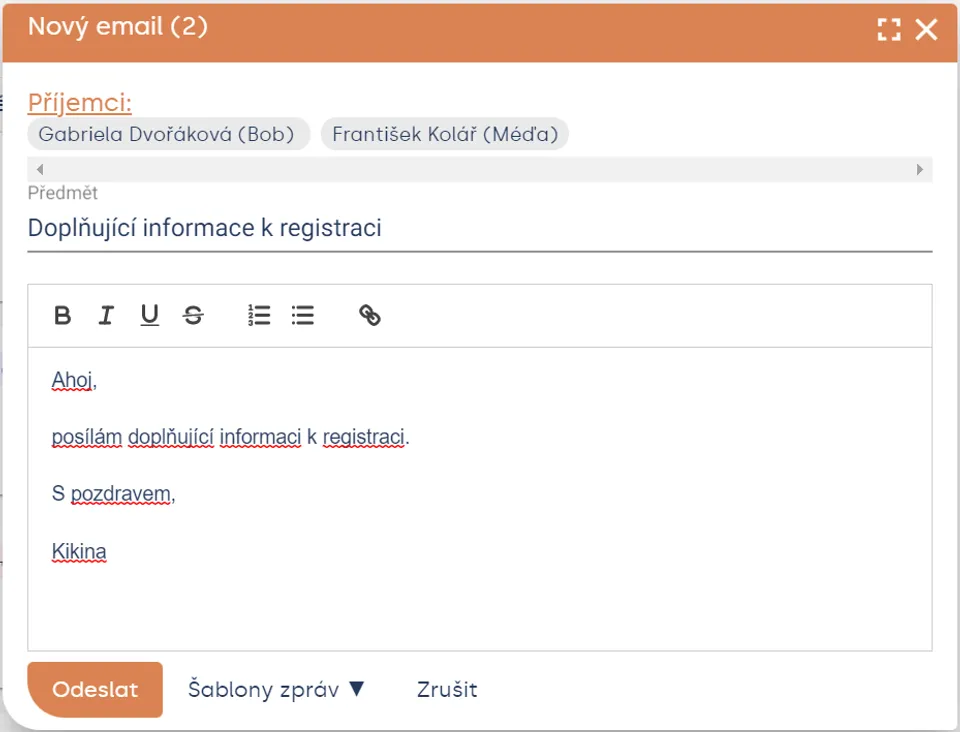
Unit > Messages > New message > New email > Next>>
Schedule sending
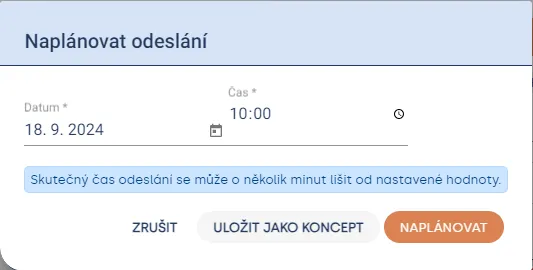
Levitio offers the option to schedule email sending for a specific time and day. This option appears after selecting message recipients and writing the email text and subject. Schedule sending by clicking the clock icon next to the SEND button.

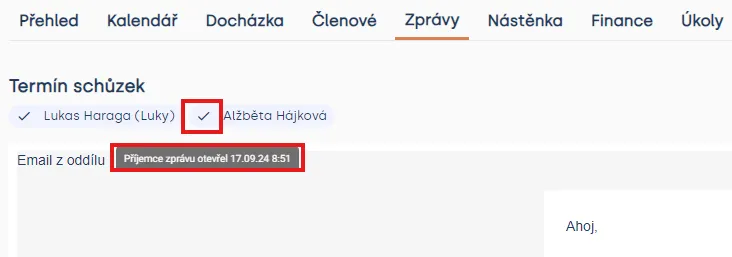
In the Messages section, you can then check whether the recipient read the message. You can tell by the icon next to the recipient’s name. A checkmark means the message was read. View details by hovering over the checkmark symbol.
Message templates
Set up a message template in the Unit > Settings > Messages section.

Unit > Settings > Messages
On the page, you will find templates you already have set up and the “New message template” button.

Unit > Settings > Messages
Fill in the template name, message subject, and the text itself. After filling in, click the “Save” button and the template will appear in the template list.
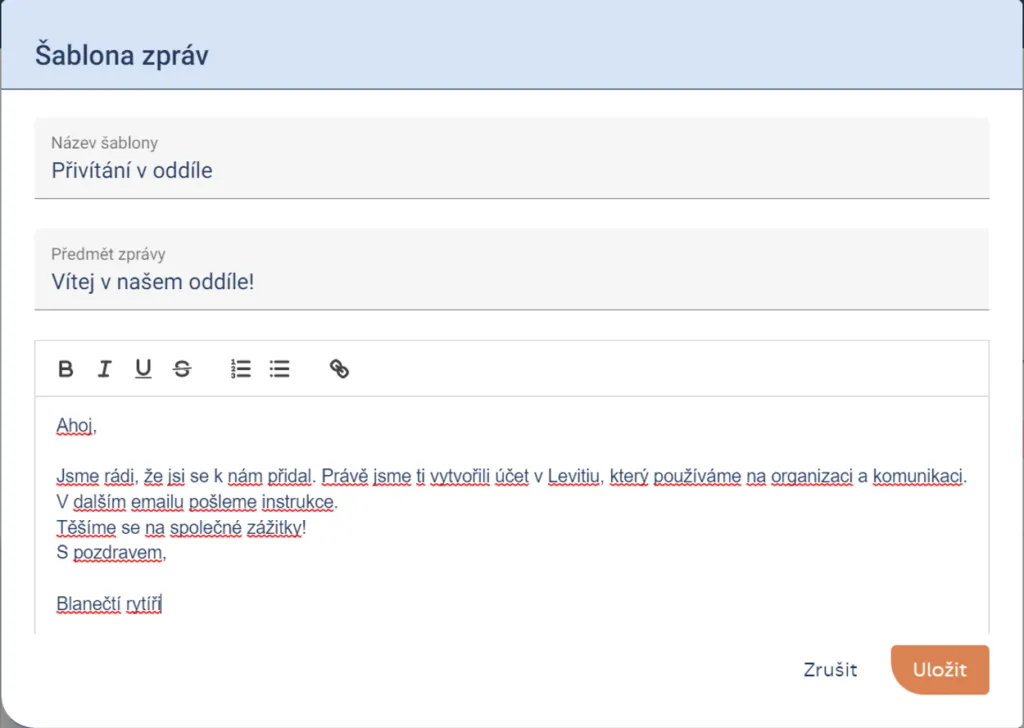
Unit > Settings > Messages > New message template
You then select the template when sending a new email. You can find all your message templates next to the “send” button. Simply select a template and send the email.
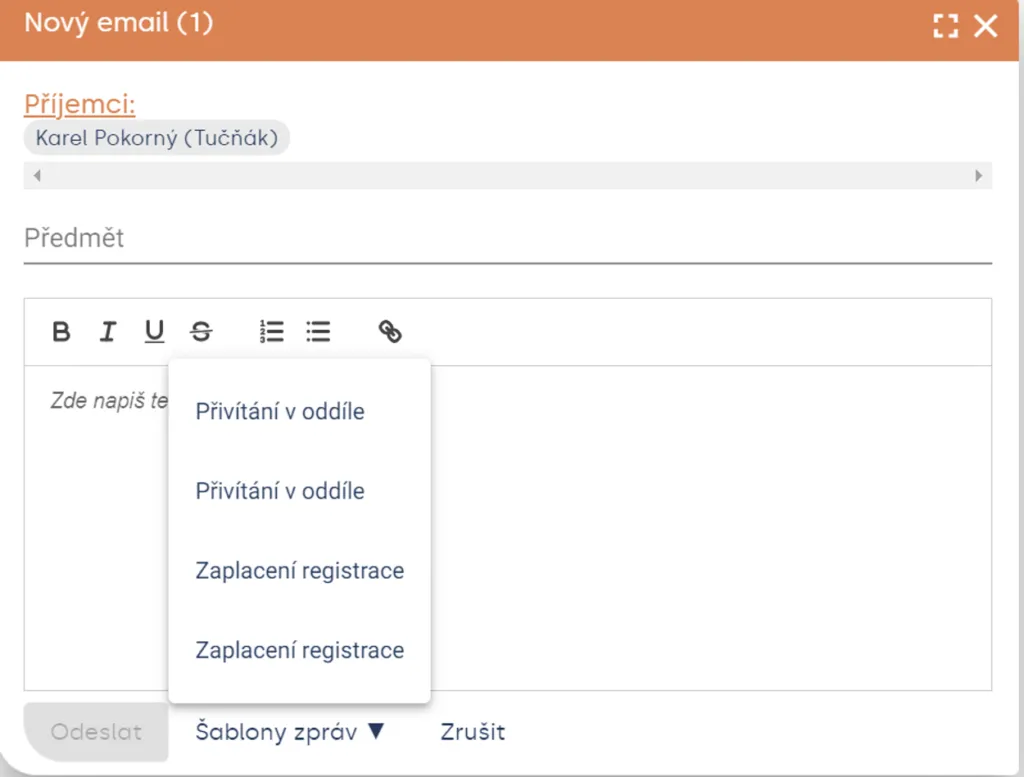
Unit > Settings > Messages > New message template
Tip Message templates can be used, for example, to welcome a new member to the unit or to send information about the registration fee. The only limit is your imagination…
Tip By clicking an already created template, you can edit or delete the template.
New SMS message
Levitio lets you send SMS messages via mobile phone. In the Unit / club > Messages section, click the “New message” button and select “New SMS message”. From the member/parent lists, select everyone you want to send the message to and click the “next>>” button.
In the next window, select your phone’s operating system (iPhone or Android). Levitio will redirect you to your phone’s SMS app and pre-fill the selected phone numbers. Just write and send the SMS (charges may apply according to your plan. It works the same as if you were sending SMS from your phone.)
Heads up! You can only send SMS messages from a phone; it is not possible from a computer.
Some phone operating systems allow copying a maximum number of contacts (e.g. 20). If this is the case for your phone, we recommend sending SMS in batches, e.g. by patrols (it’s worth testing – each phone model may work differently).
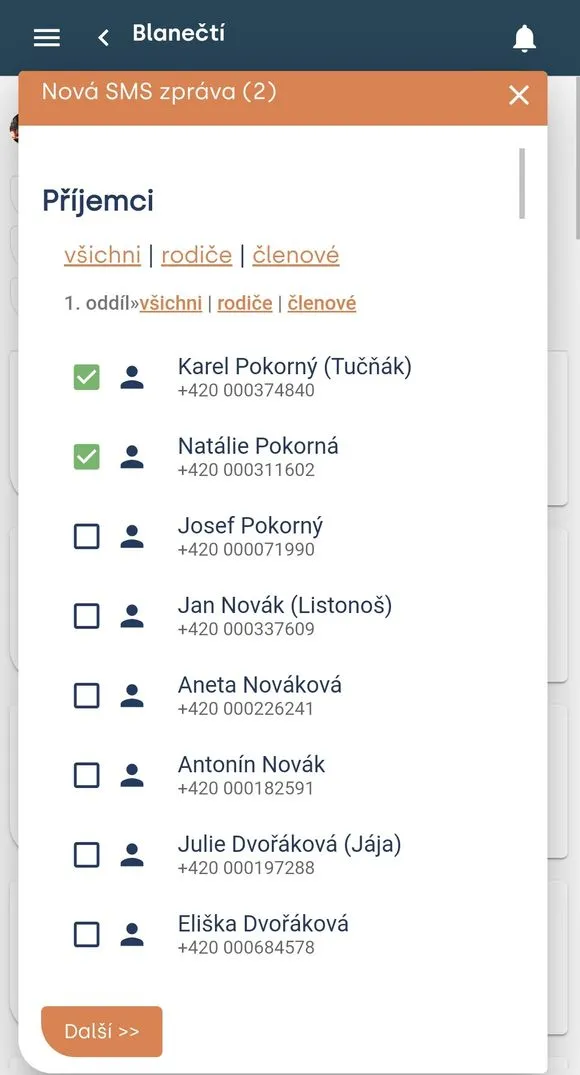
Unit > Messages > New message > New SMS message
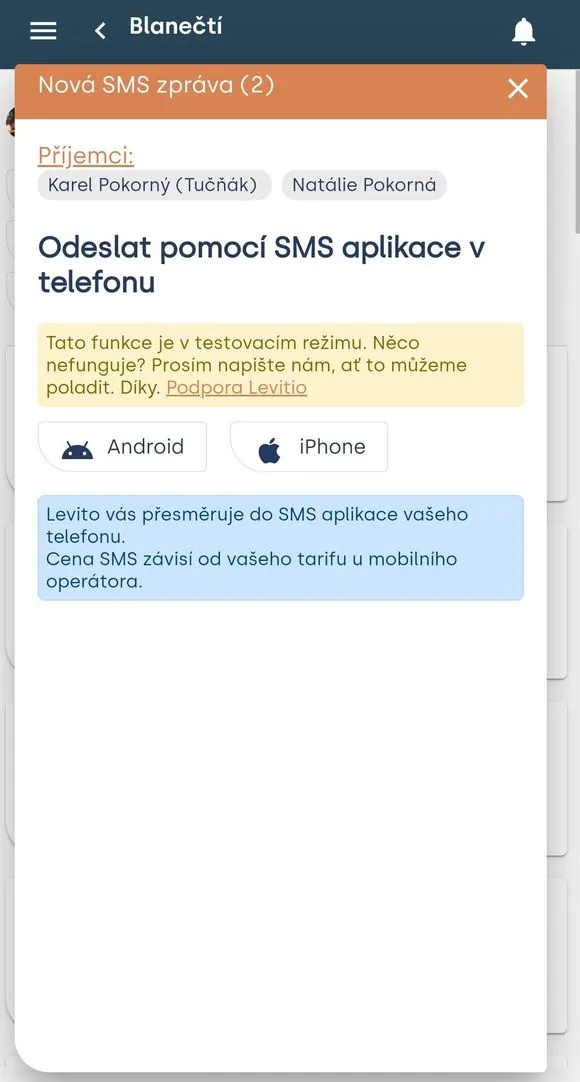
Unit > Messages > New message > New SMS message
Invitation to the parent and member portal
From the Messages tab, you can also bulk send an invitation to the parent and member portal. Learn more about the portal in the article Levitio for parents.
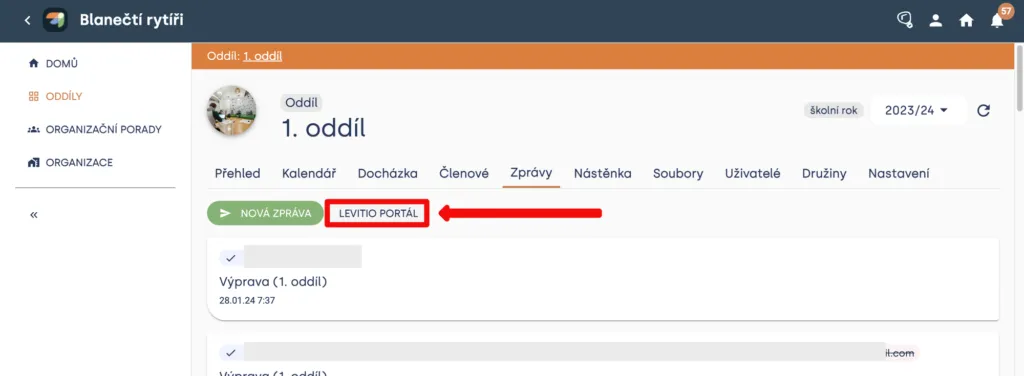
Unit > Messages > Levitio portal
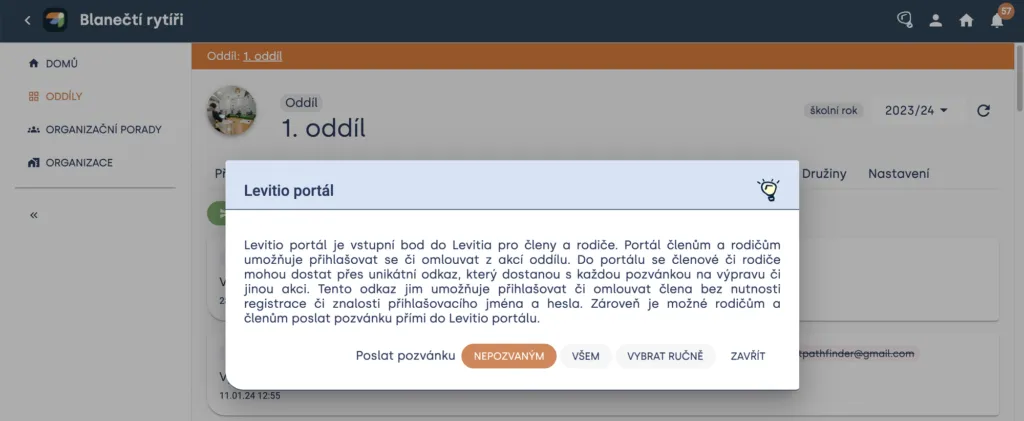
Unit > Messages > Levitio portal
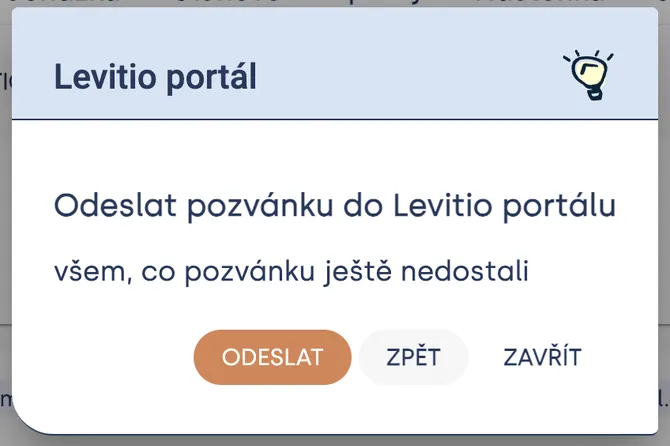
Unit > Messages > Levitio portal
Related articles
Communication
Noticeboard
An internal noticeboard of a specific unit, event, or patrol. For community noticeboards of all Levitio users, see the Levitio noticeboard article.
Communication
Levitio noticeboard
Shared community noticeboards for leaders from different organizations. You will find them on the Levitio home page.
Communication
Trip feedback
After a supported event has taken place, you can ask parents or participants for feedback from the event detail.
Getting started
Getting started
Levitio is used by organizations, leaders, members, and parents. This guide walks you through creating an organization and the first steps.
For parents
Levitio for parents
Parent and member portal: events, payments, noticeboard, and children's details in one place. You enter the portal with a personal link, without registration or a password.