Help overview/Smart table
Bulk processing of camp leave requests with wage reimbursement in Levitio
In Levitio, you can **easily generate the required documents** for leave requests with wage reimbursement – even **for all leaders at once**, thanks to pre-filling with dynamic fields.
In Levitio, you can easily generate the required documents for leave requests with wage reimbursement – even for all leaders at once, thanks to pre-filling with dynamic fields.
Note: This guide explains working with documents in Levitio. Conditions for leave and wage reimbursement may change; before using them, check the current legal requirements and required forms.
Levitio has ready-made templates for this (thanks 🐒 Opičák!), into which the app automatically fills in data (names, addresses, etc.), so it saves you unnecessary retyping. You only need a few minutes – and the employer has everything they need.
How to work with print templates
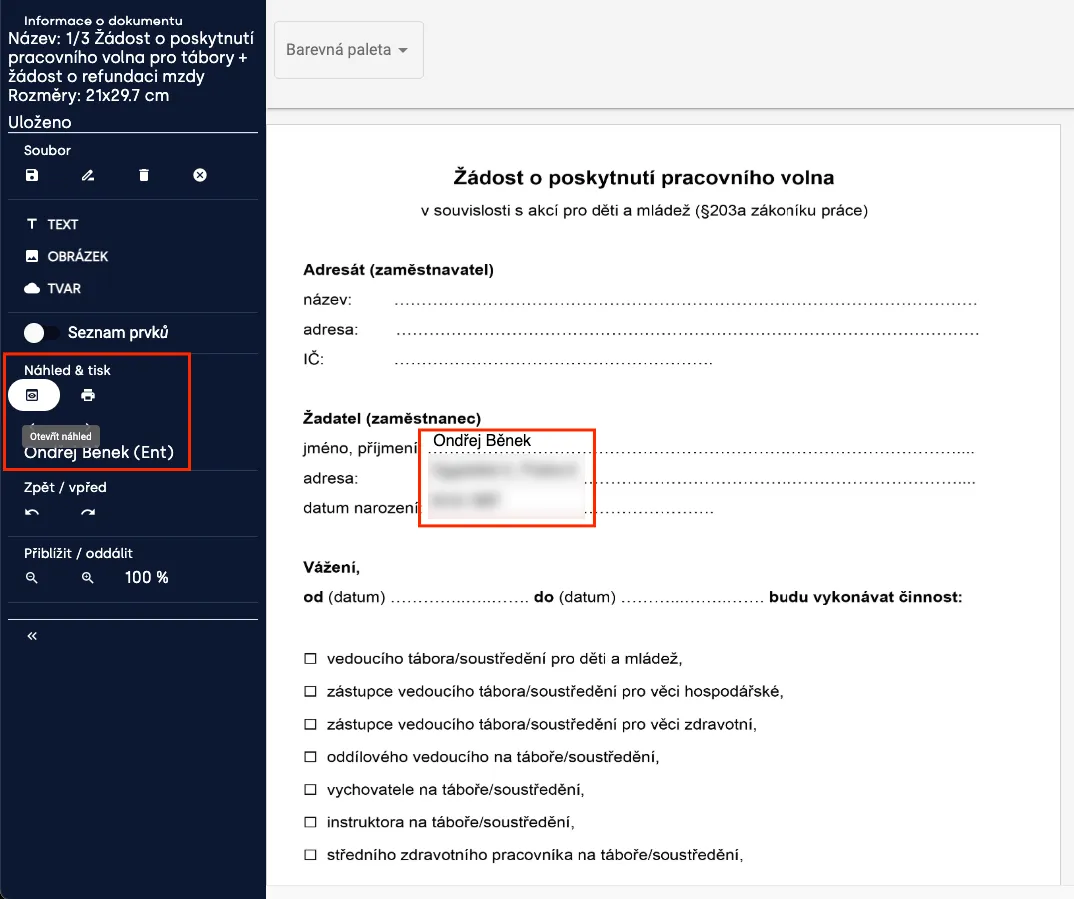
Print templates work with so-called dynamic data. This means you tell the system “I want a name here and a contact here” and the app fills in, for example, the member’s name and contact into 50 diplomas/applications/documents. This data comes from the smart table – anything you have filled in there can be used for automatic bulk document creation.
Dynamic data (“Member.Full name”) → Specific data (“Ondřej”).
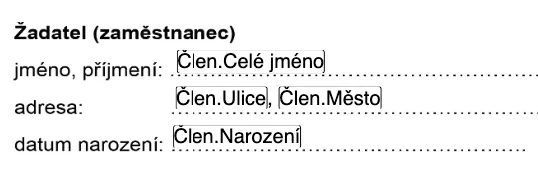
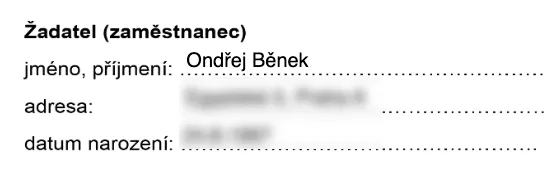
This is what it looks like in the document:
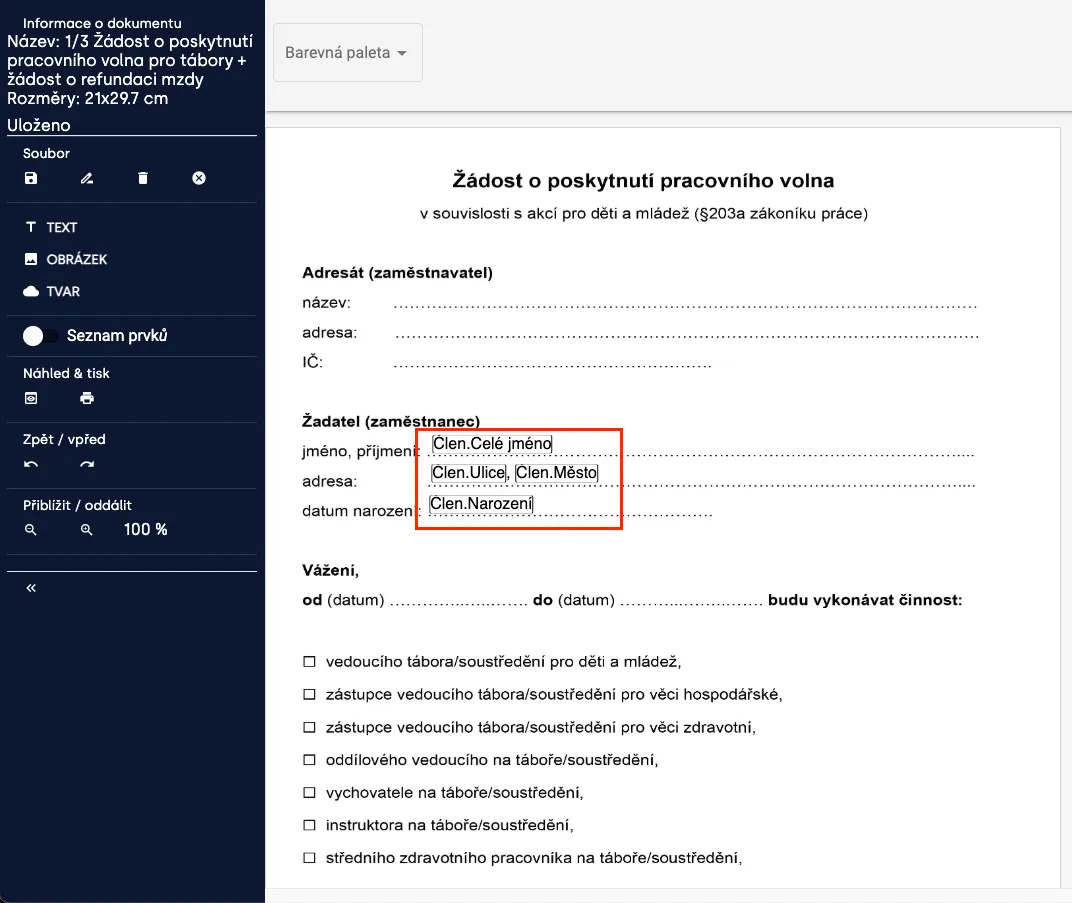
Learn how to work with print templates in the video:
Selecting members
Unit → Smart table → Print templates (icon:

For whom do I want to create documents? Either I have all leaders (not everyone has to be employed) in one patrol, or I can easily filter them in the unit in the smart table (e.g. by age or other criteria). Once I have the right members selected (templates will be created for all selected members), I can click the print templates icon.
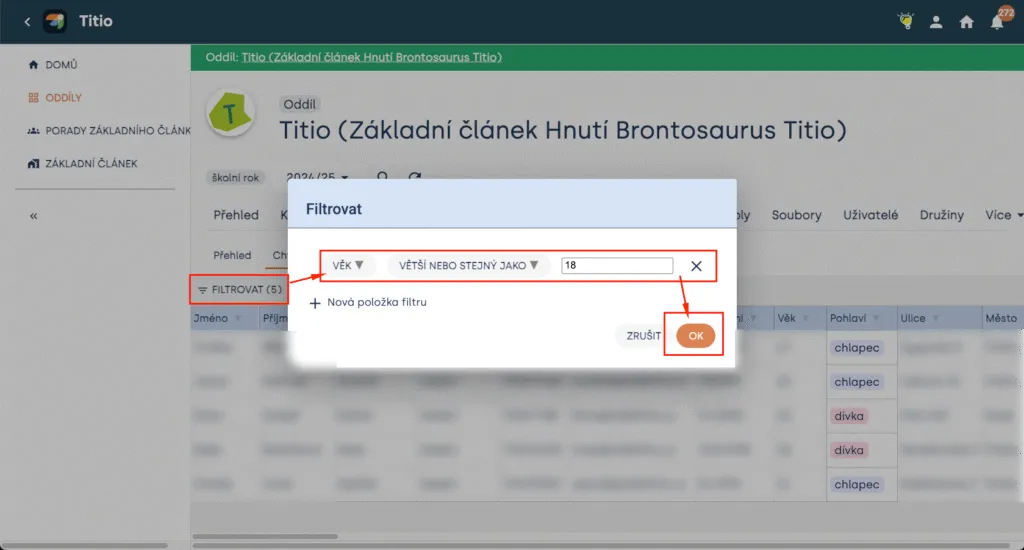
Filtering members
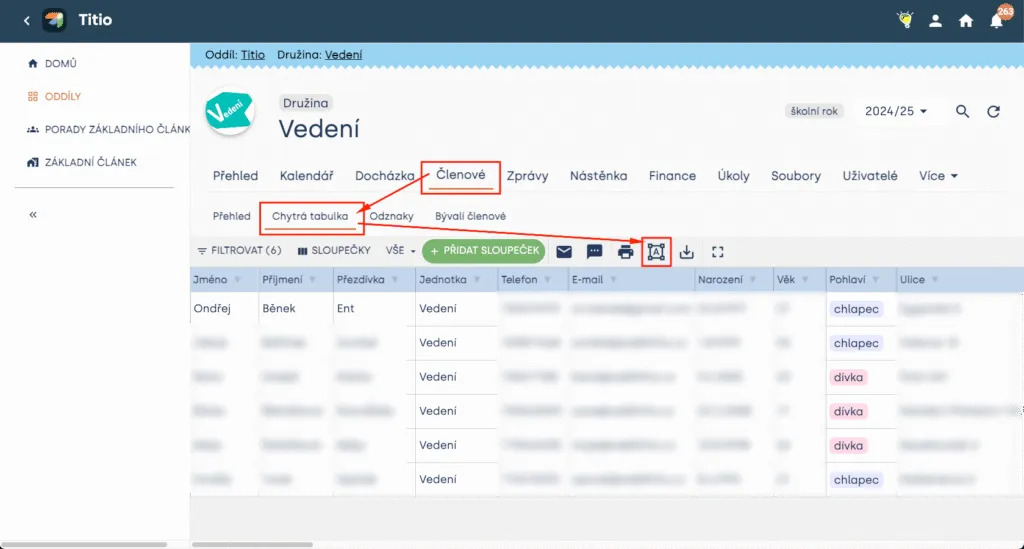
Entering print templates (all selected members)
Required documents
You will need 3 documents in total, all are ready in Levitio: ✅ Volunteer activity confirmation – Levitio fills in your details and information about the unit or organization. ✅ Leave request + reimbursement ✅ Confirmation of leave use after camp – ready-made form, just print and have it signed by the organizer.
Heads up! For Levitio to fill in organization data, you must have it filled in unit settings (organization/unit/patrol – depending on where you use print templates).
Member data must logically be filled in the smart table 🙂
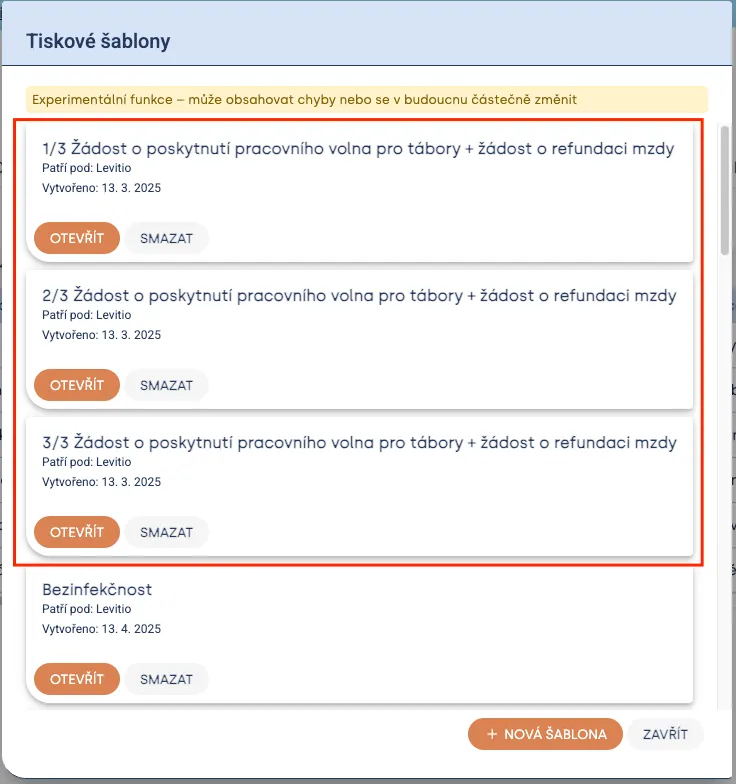
Templates for granting leave from work
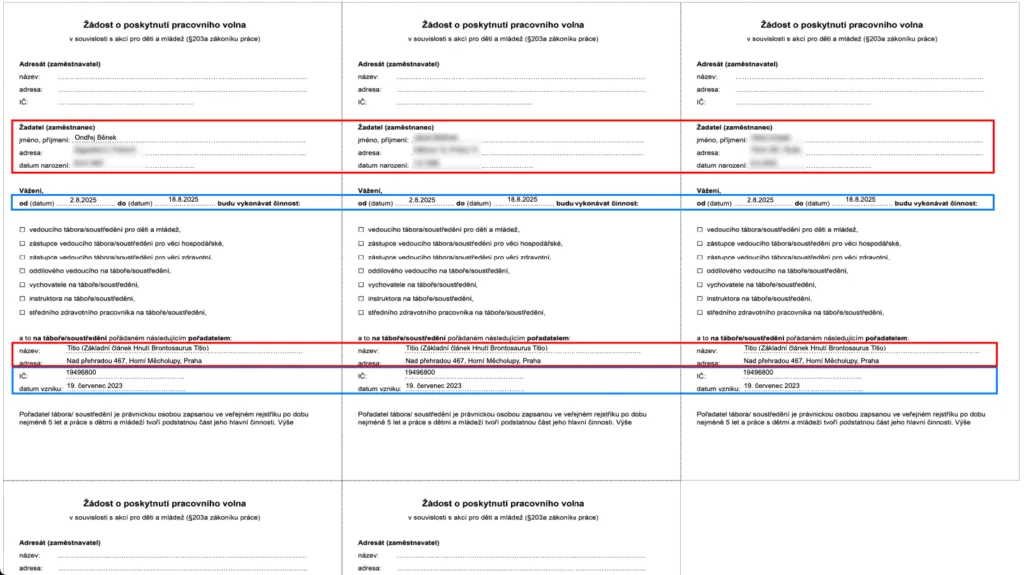
Volunteer activity confirmation
What needs to be filled in:
- For each person separately: You will need to manually add the employer’s address for each document separately,
- Once for everyone: (in blue in the image): camp dates (from-to) and organization details (company ID and establishment)
- Filled in automatically by Levitio: (in red in the image): applicant/leader (including address/date of birth) and organizer/unit (including address)
Leave request + reimbursement
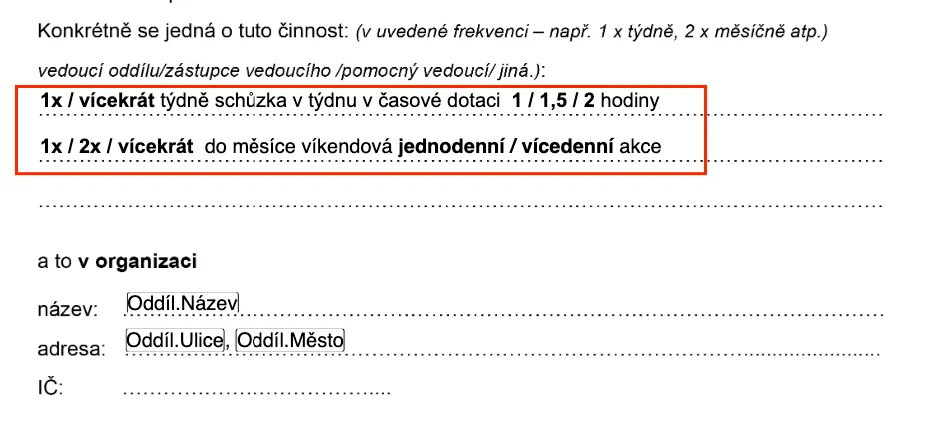
Levitio will again pre-fill organization data, but you will need to adjust the frequency with which leaders help in the unit. If everyone is more or less the same, you can adjust it in Levitio for everyone; if not, you will fill it in manually for each person:
Confirmation of leave use after camp
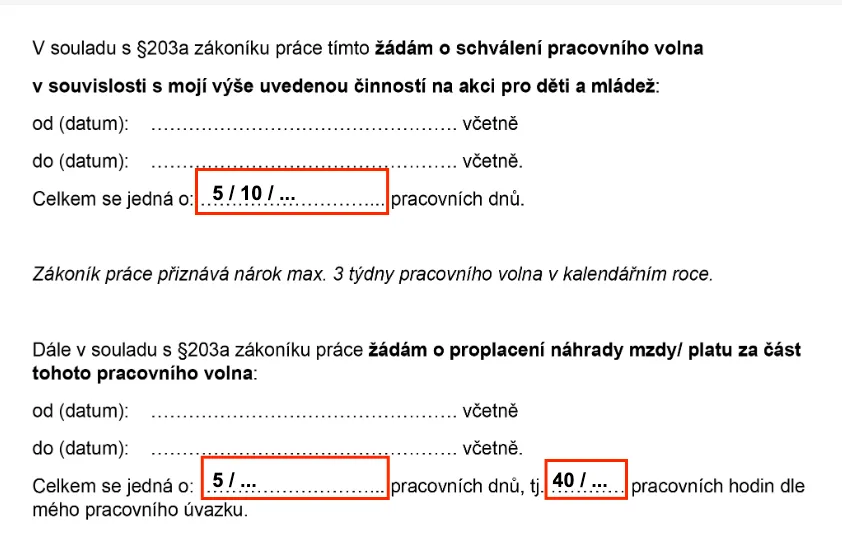
Here you will need to fill in most fields manually, because they will be different for each person…
Related articles
Smart table
Smart table
Smart table is a tool of a specific unit / club for working with member data.
Smart table
Custom columns
You can add custom columns to Smart table for data you need to record beyond the basic member profile.
Smart table
Bulk creation of pre-filled infection-free and health fitness forms
In Levitio you can easily generate required camp documents – even for all children at once, thanks to pre filling with dynamic fields.
Getting started
Getting started
Levitio is used by organizations, leaders, members, and parents. This guide walks you through creating an organization and the first steps.
For parents
Levitio for parents
Parent and member portal: events, payments, noticeboard, and children's details in one place. You enter the portal with a personal link, without registration or a password.