Help overview/Events
Templates
Templates save time on things that repeat during the year — locations, packing lists, messages, program, and custom columns.
Templates save time on things that repeat during the year. In Levitio you can use templates for, for example:
- locations,
- packing lists,
- messages,
- program,
- custom columns / member data.
Locations
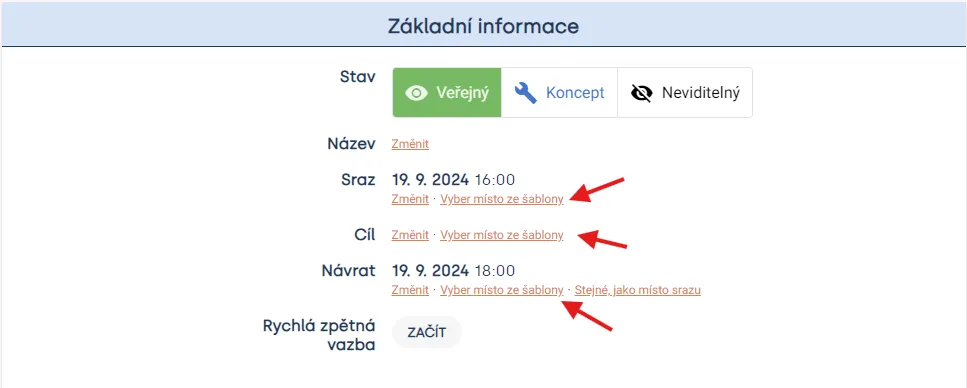
When creating an event, you can select the meeting place / event location from a preset template. You can customize templates for yourself and create more than one. To set up a template, select “Choose location from template” for meeting / destination / return. In the next window, select “+New location”.
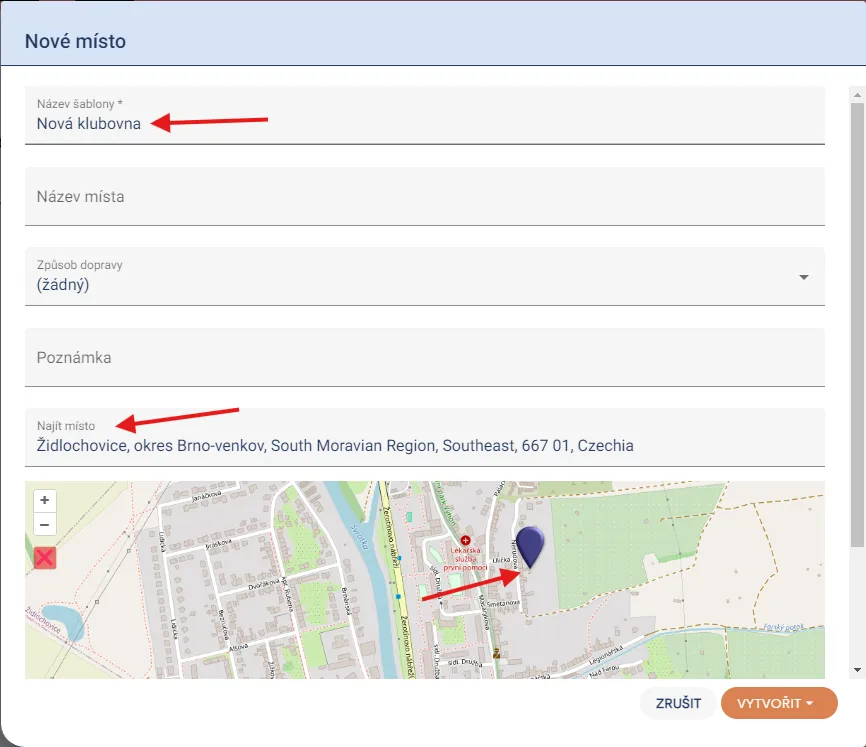
As the next step, choose the name of the new template and you can search by city for the location of your clubhouse (or another desired place). You can pinpoint the location more precisely with a pin. Save the new template using the CREATE button in the bottom right corner.
Practical tip You can create a template just for your unit or for the entire organization.
Packing list
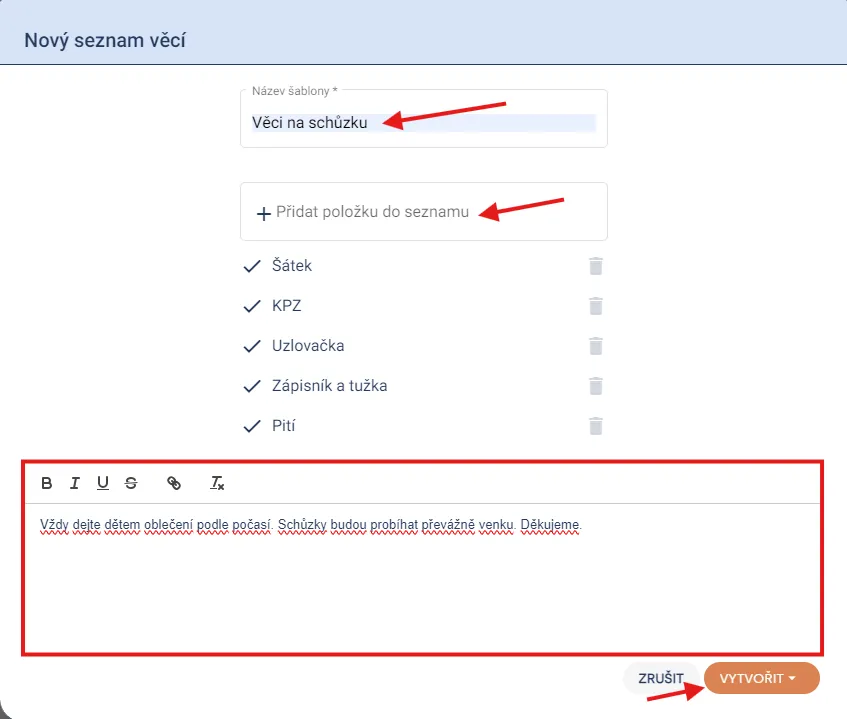
You can set packing list templates for each event. You can have multiple templates, and like locations, you can set them for a specific unit or for the entire organization. Choose your template name and in the next field list the items children should bring to the meeting / event. In the bottom field, you can add additional notes or any text for parents. Save the new template by clicking the CREATE button in the bottom right corner.
Messages
You can use message templates on many occasions that repeat during the year or over several years, such as welcoming new members, registration payment reminders, information about how the unit works, and similar. Set up message templates in the Settings tab in the Messages section.

In the “Messages” tab, you will find not only your existing message templates but also the option to set up a new template.

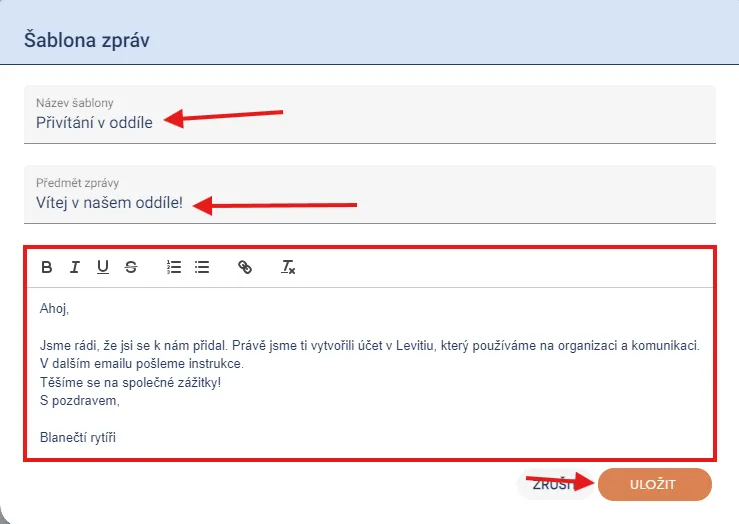
To set up a new template, choose the template name and message subject. In the last field, enter the message text. Save the template by clicking the SAVE button.
Program
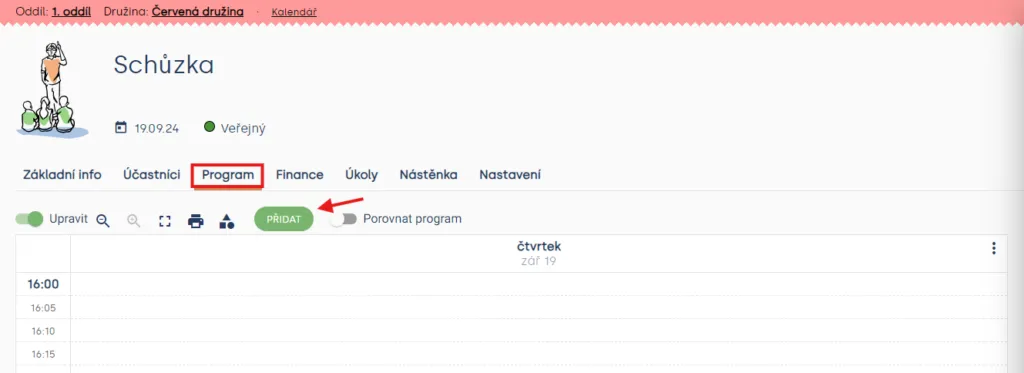
Program templates can also help when creating a program. Create a new template in the Program tab using the ADD button.
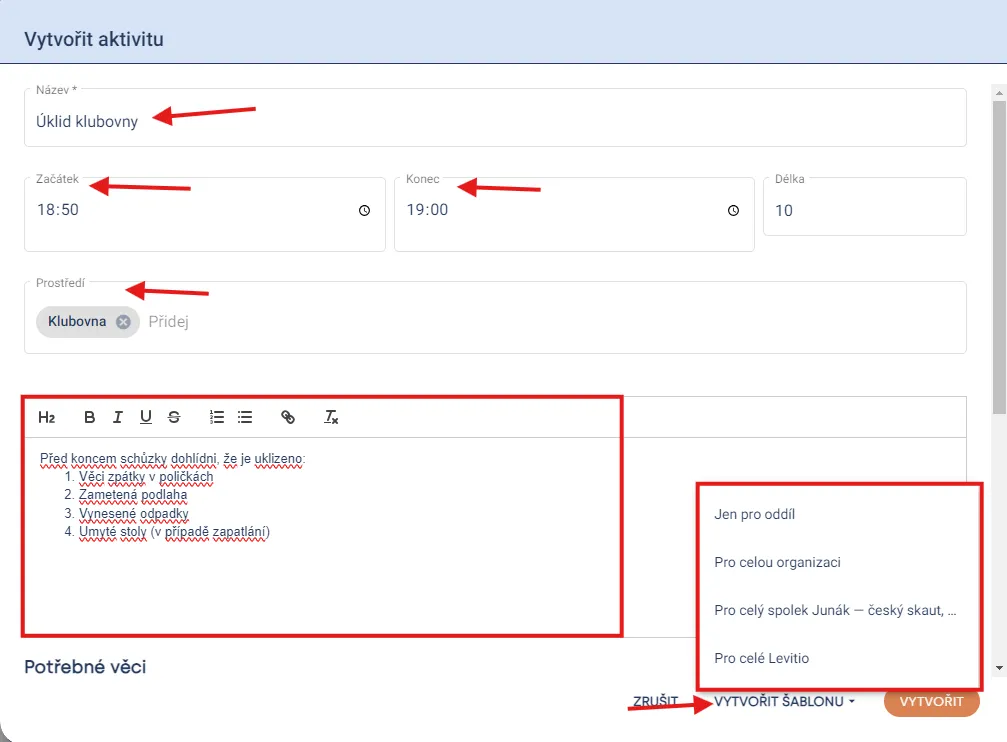
Like the previous templates, simply fill in the template name and text (for example game rules, instructions, etc.). Then choose the program start and end — Levitio will automatically calculate the total activity time. If the program is intended for a specific environment, you can specify this environment. As the last step, click the CREATE TEMPLATE button and choose who you want to create the template for, thereby confirming the template.
Columns (Smart tables)
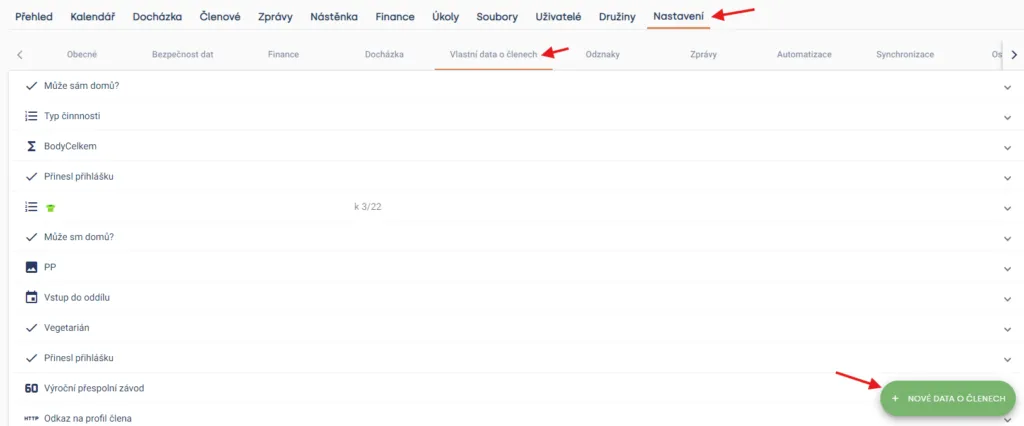
In your unit / club, you can preset columns that you will use in Smart table. You can use custom columns, for example, when paying registration, finding out t-shirt sizes of new members, and similar. Access the option to create custom columns through the Settings tab in the Custom member data section. In the bottom right corner, you will find the NEW MEMBER DATA button.
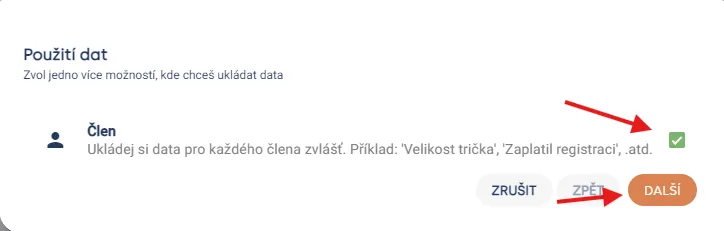
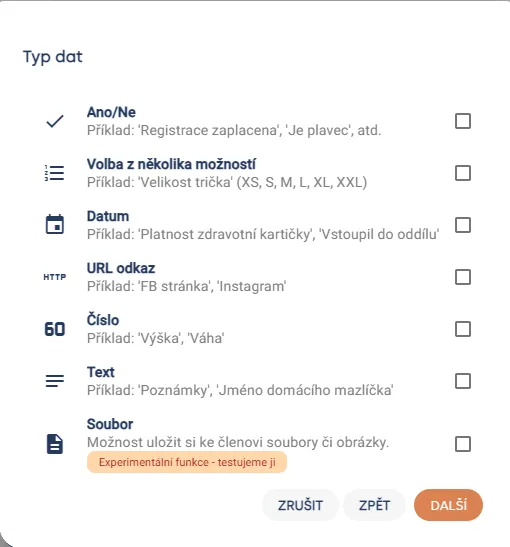
In the next section, choose the data format you want to use in the column from the following options.
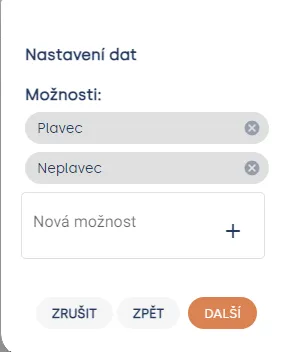
If you choose “Choice from several options”, for example, in the next step you set the options you want for the column. Confirm options with the NEXT button.
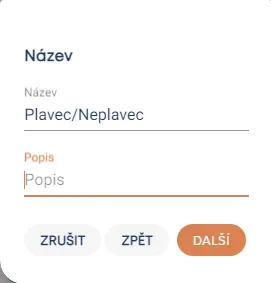
The penultimate step lets you choose a name and describe the meaning of your column in more detail.
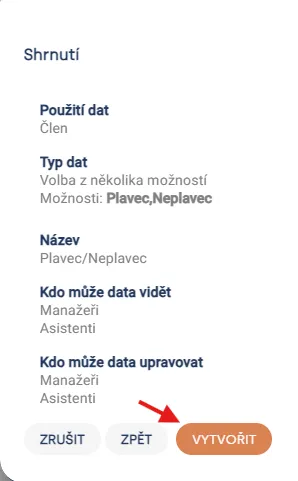
In the final steps, you confirm who has permission to view and edit data. In the concluding step, you will see a summary of all the details you preset. If everything is correct, confirm the setup by clicking the CREATE button.
Related articles
Events
Creating events
Before you start creating events, it's good to clarify the differences between event types.
Events
Event settings
For each event you can choose one of three statuses: Invisible, Draft, or Public.
Events
Google Calendar sync
You set up the Google Calendar connection in a specific unit / club. Synchronization may not appear immediately.
Events
Inviting members to an event
After creating an event, check who is invited and send the invitation from the event detail. The parent or member receives a link where they can confirm attendance or excuse the child.
Events
Event program
For an event you can prepare a timed program in Levitio and split it into individual activities. You can save repeated activities as templates.